Avada WordPress Theme Review
Choosing a WordPress theme is one of those decisions that looks simple until you actually have to live with it. Pick the wrong one and you spend months fighting slow pages, limited layouts, and a builder that cannot do what your business needs. Pick the right one and your website almost builds itself. That is the promise behind Avada, the best-selling WordPress theme on ThemeForest, and in this Avada WordPress theme review we are going to test that promise properly.
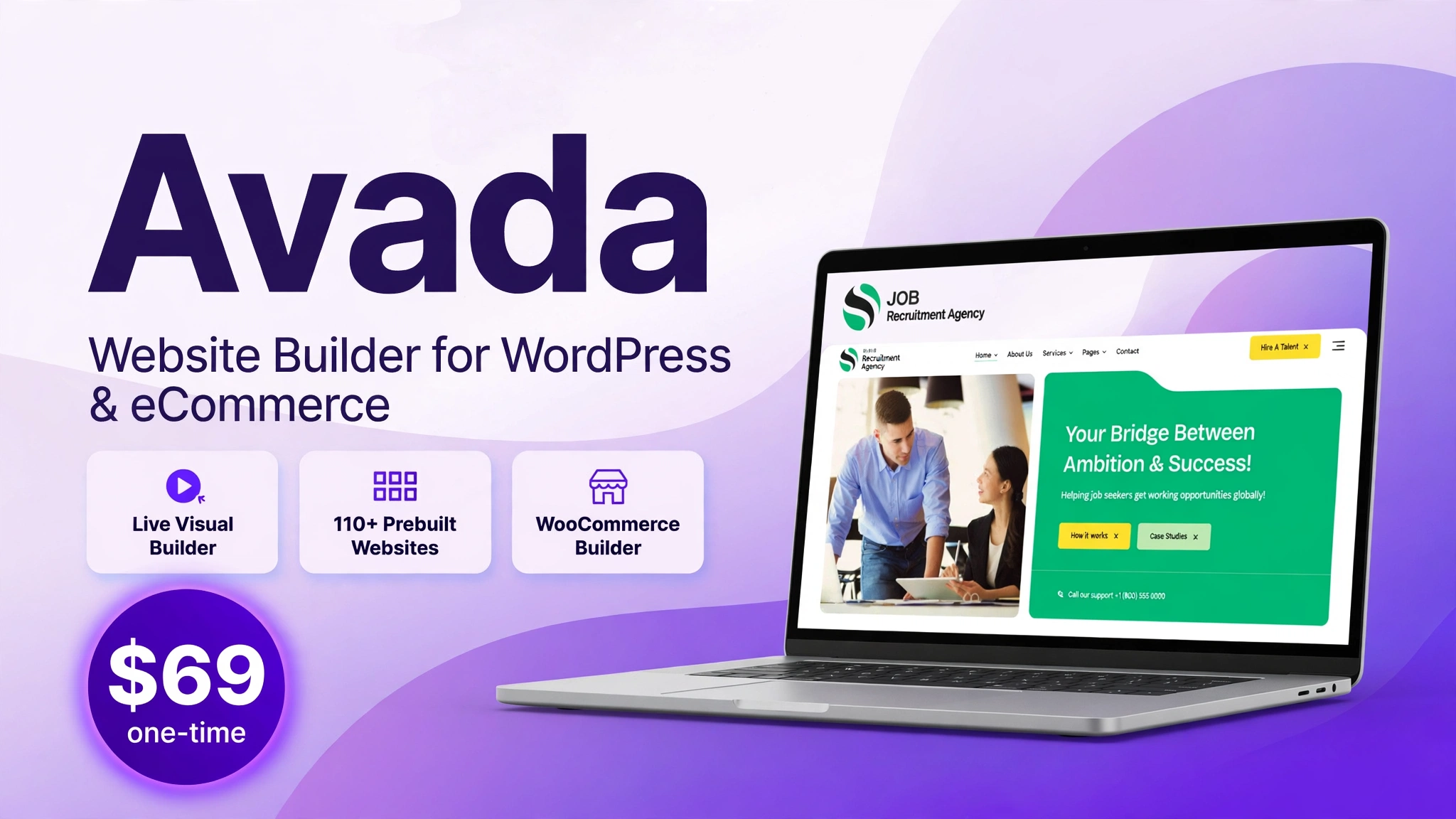
Short answer: Avada is worth it for most WordPress users who want one flexible theme for almost any kind of website. For a $69 one-time payment with a Regular License, you get the Live Visual Builder, 110+ prebuilt websites, a WooCommerce builder, and six premium plugins bundled in. It is not the lightest theme you can buy, and it has a learning curve, but for agencies, freelancers, and small businesses that want to build client sites quickly without buying a new theme every time, it is still the safest all-round choice in 2026.
In this review, verified live on ThemeForest on 6 November 2026, we cover what Avada is, how it works step by step, every key feature, the real pricing and license terms, who should buy it, and how it compares with a strong rival. We also answer the questions people actually ask before they buy, including whether it is good for WooCommerce, how fast it is, and whether a beginner can use it.
What Is Avada?
Avada is a multipurpose WordPress theme and website builder by ThemeFusion. It is sold on Avada on ThemeForest and has been the number one selling WordPress website builder on the marketplace for years. It is not a niche theme for one type of site. It is a complete toolkit for building business websites, online stores, portfolios, blogs, and membership sites from one WordPress installation.
The numbers explain why so many people trust it. At the time of writing, Avada has more than 1,000,000 users, over 1,074,933 sales, and a 4.78 out of 5 rating from 26,605 reviews on ThemeForest. The current version is 7.16, updated on 28 October 2026, and the theme is built for WordPress 6.8.3 and WooCommerce 10.3. Those are not marketing claims from an old sales page. They are live figures from the official listing, and they matter, because a theme with this many users gets tested on far more hosting setups, plugins, and real websites than a new theme ever will.
At its core, Avada is two things working together. First, it is a theme that controls how your site looks: the header, footer, typography, colors, and page layouts. Second, it is a builder that controls how you create pages: a live, front-end visual builder with ready-made websites you can import, edit, and make your own. You do not need to write code to use it, although developers get full access to the underlying code, hooks, and options if they want it.
Avada is also a practical business tool. A freelancer can buy one license, build a client website, and hand it over with a builder the client can actually learn. An agency can standardize on Avada across dozens of client sites instead of learning a new theme for every project. A small business owner can start from a prebuilt website for their industry, swap in their own text and photos, and publish a professional site in days rather than weeks. That flexibility is the reason it keeps selling while trendier themes come and go.
It helps to be clear about what Avada is not. It is not a page builder plugin you can use with any theme, although its builder works inside the Avada theme. It is not a hosted website builder like Wix or Squarespace. You still need WordPress, a domain, and hosting. And it is not a subscription. You pay once for the theme license, and that license includes free updates for the life of the product, plus six months of support from ThemeFusion, which you can extend if you want longer support.
If you are new to WordPress themes and want a broader starting point, our guide on how to create a sales funnel without coding shows how a well-built website fits into a complete customer journey, and our roundup of the best SaaS tools for small businesses can help you choose the other tools you will need alongside it.
How Does Avada Work?
Avada works as a complete website system inside WordPress. You install the theme, import a starting design if you want one, then edit everything visually on the front end of your site. There is no separate website to log into, and no monthly builder fee. Your content stays in WordPress, which means you can change hosting, add plugins, and export your site later without being locked into a proprietary platform.
Here is how the process works in practice, from a blank WordPress site to a published website.
Step 1: Buy Avada and Download the Theme Files
Start at the official listing, Avada on ThemeForest, and buy the Regular License for $69. After purchase, download the theme package from your ThemeForest account. Inside the download you will find the installable theme file, the child theme file, and the bundled plugins. Keep your purchase code safe. You will need it to register the theme and receive automatic updates.
Step 2: Install WordPress and Activate Avada
Install WordPress on your hosting account first, then go to Appearance, then Themes, then Add New, and upload the Avada zip file. Activate the theme, then install the child theme as well and activate that instead. A child theme sounds technical, but it is simply the safe way to make small changes without losing them when Avada updates. Avada will then prompt you to install the recommended and bundled plugins. Install them, register the theme with your purchase code, and you are ready to build.
Step 3: Import a Prebuilt Website or Start Blank
Open the Avada dashboard and browse the prebuilt websites. There are over 110 complete designs covering agencies, restaurants, shops, clinics, law firms, gyms, schools, portfolios, and many more. Choose the one closest to your business, choose which parts to import, and let Avada build the pages, menus, and demo content for you. If you prefer a completely custom design, you can skip the import and start with a blank page and the builder instead. Most beginners should import a design first. It is much easier to edit a finished website than to stare at a blank page.
Step 4: Edit Pages with the Live Visual Builder
Open any page and click the Live Visual Builder option. You will see your page exactly as visitors see it. Click any text to change it. Click any image to replace it. Drag elements to move them, add new columns, buttons, forms, and sliders from the element panel, and watch the changes happen instantly. There is a wireframe mode for rearranging the structure of a page quickly, and a live mode for fine-tuning how it looks. When you are happy, save the page. This front-end editing is the part of Avada most users actually fall in love with, because it removes the guesswork of the old WordPress editor.
Step 5: Set Up Your Header, Footer, and Global Options
A website is more than its pages. Use the Layout Builder to design your header, footer, and page title bars once, then reuse them across the site. Use the Theme Options panel to set your logo, colors, typography, button styles, and layout widths in one place. Change a color in Theme Options and it updates everywhere. This is how agencies keep a consistent brand across a whole site without editing every single page by hand.
Step 6: Add Your Shop, Forms, and Final Touches
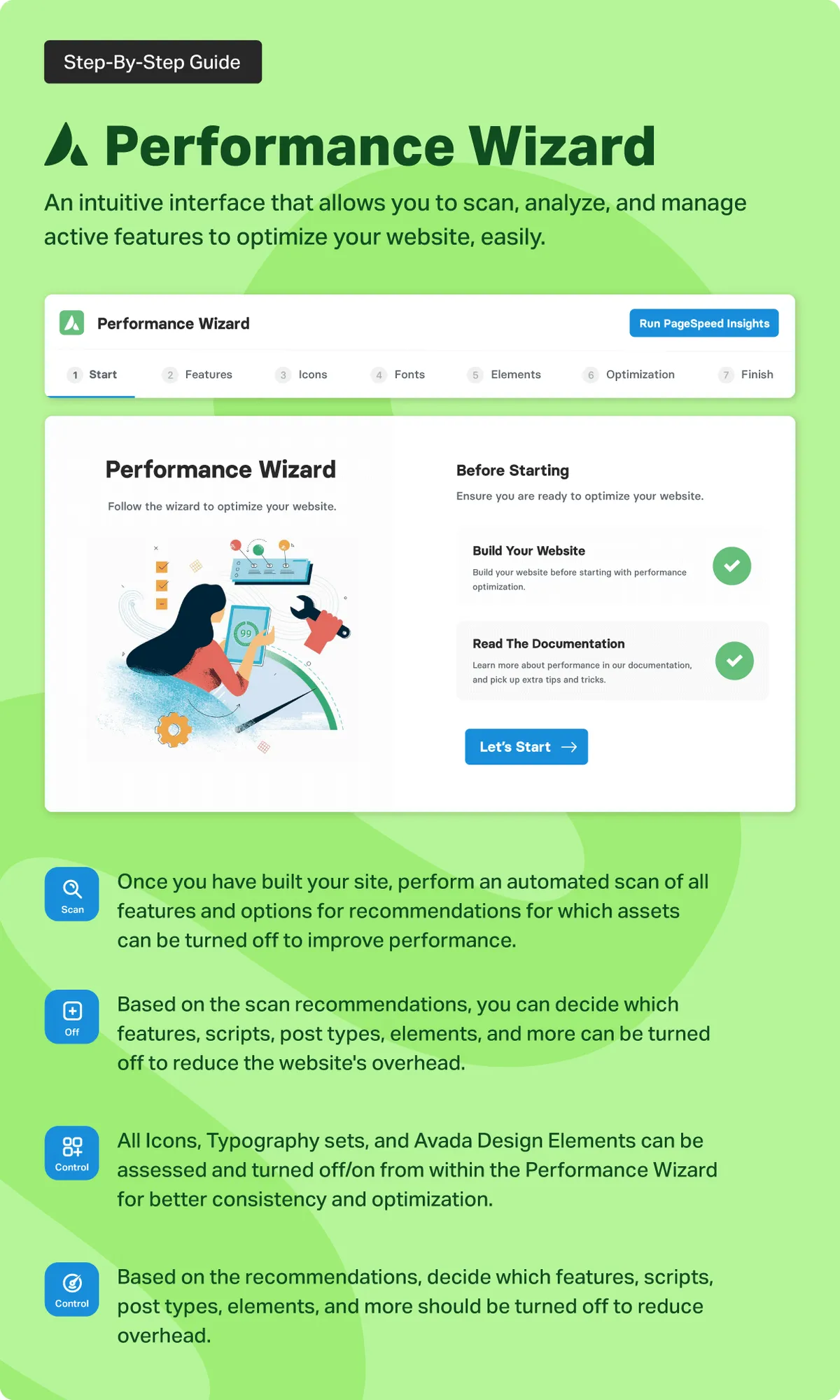
If you sell products, install WooCommerce and use the WooCommerce Builder to design your shop, product, cart, and checkout pages with the same visual builder. Add a contact form with the built-in form builder, connect your email marketing tool, and run the Performance Wizard to set up caching, image handling, and speed settings. Check the site on a phone, test every button, then publish. A good final check is to ask a friend to find your contact page and your main product in under ten seconds. If they cannot, simplify the navigation before you launch.
That workflow is the real strength of Avada. It is not just a collection of features. It is a repeatable process for launching a professional website: import, edit, set the global design, add the shop, and publish. Once you have done it once, the second site takes half the time.
Key Avada Features
Avada has a long feature list, but only a few features decide whether it is right for you. These are the six that matter most, how they work in real projects, and where their limits are.
1. Live Visual Builder
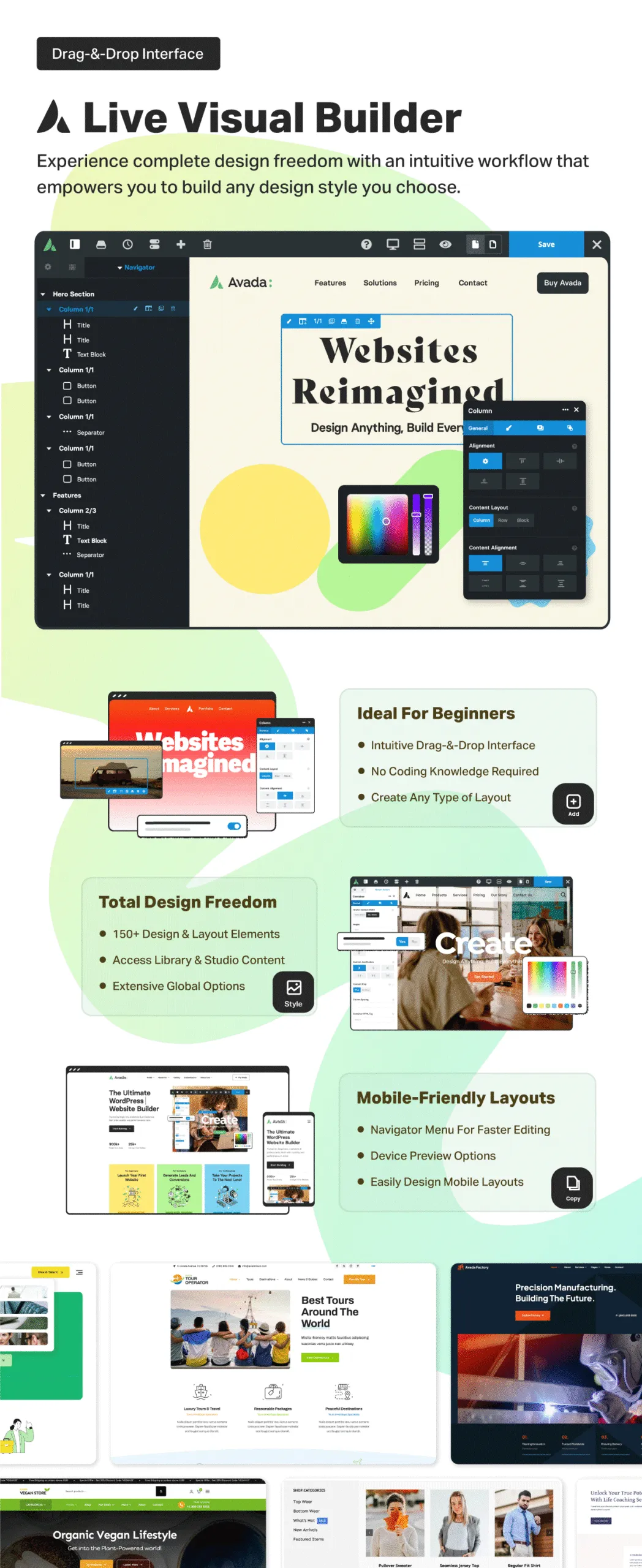
The Live Visual Builder is the heart of Avada. Instead of editing in the back end and guessing what the page will look like, you edit the live page itself. Text, images, buttons, and sections all respond to clicks, and you can drag elements into place, change their size, and adjust spacing with sliders. A wireframe view shows the structure of the page at a glance, which is useful when a page has many nested columns and containers.
For beginners, this removes the biggest fear of WordPress: breaking the layout. You can see every change before you save it, and you can undo a step if you do not like it. For experienced users, the builder supports global elements, so you can save a call-to-action section once and reuse it on every page. Change the saved element once and every page that uses it updates. That single feature saves agencies hours on every project.
The builder also includes a large library of elements, including text blocks, images, videos, accordions, tabs, pricing tables, testimonials, counters, and forms. You do not need a separate page builder plugin, and you do not need to learn shortcodes. The trade-off is that Avada pages are built for Avada. If you later switch themes, your builder layouts will not carry over cleanly, so treat Avada as a long-term choice rather than an experiment.
2. 110+ Prebuilt Websites
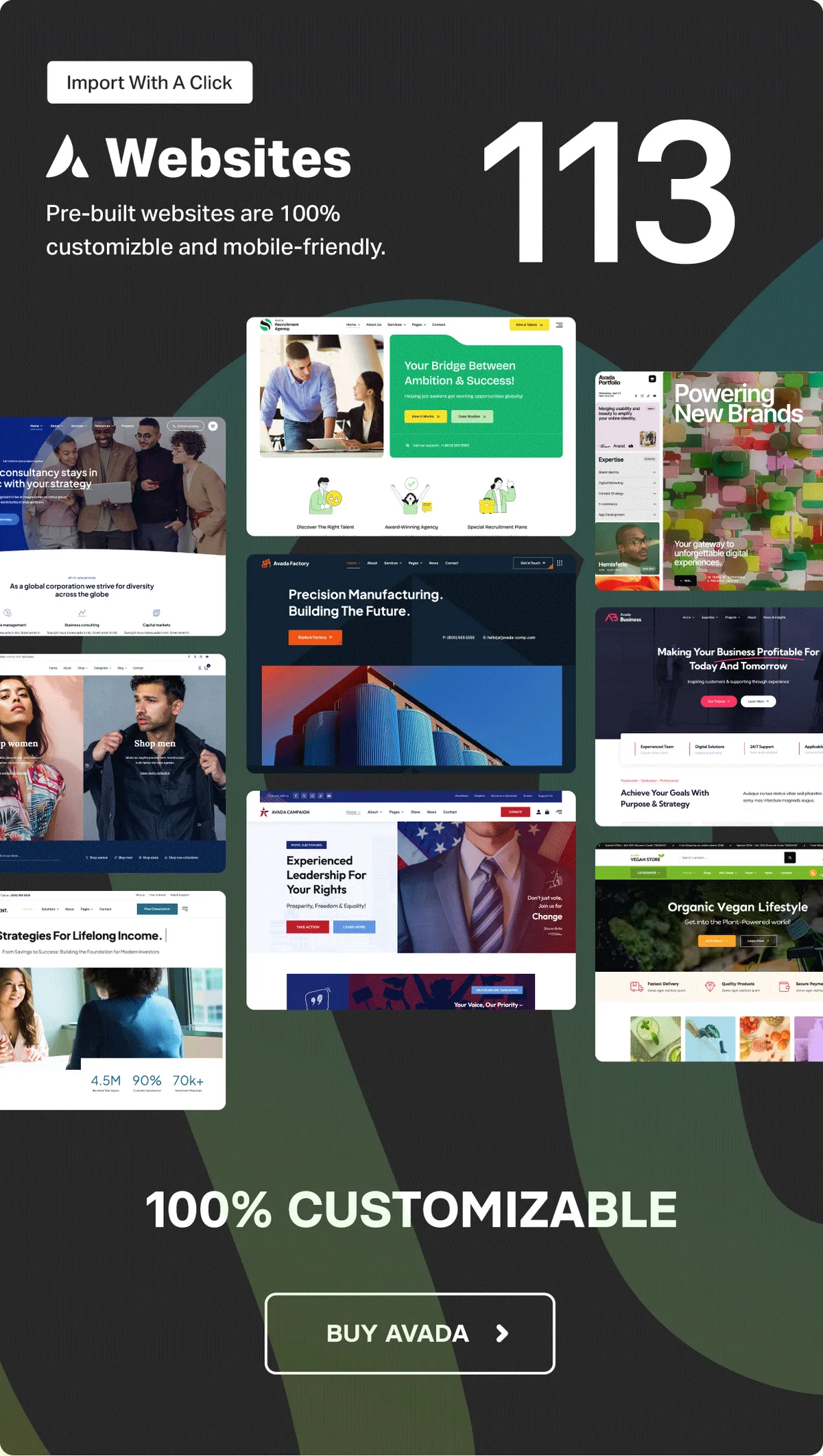
Prebuilt websites are the fastest way to start with Avada. Instead of designing from a blank page, you import a complete website for your industry, then replace the text, photos, and colors with your own. The library includes designs for agencies, consultants, restaurants, cafes, gyms, yoga studios, clinics, dentists, law firms, real estate agents, schools, churches, photographers, and online shops.
Import is selective. You can import the whole website, or only the homepage, or only a single page you like. That matters, because most people do not want every page of a demo. They want the homepage layout, the services layout, and the contact layout, and they want to build the rest themselves. The import tool also brings in the menus, sliders, and theme settings the demo uses, so your site looks like the demo immediately, not like a half-finished copy.
Here is how to use them well. First, choose a demo for your industry, not the prettiest demo on the list. A restaurant demo has menus, opening hours, and reservations. A clinic demo has services, doctors, and appointment forms. Second, delete the demo pages you will not use instead of leaving them published. Third, replace every demo photo with your own or a properly licensed image before launch. Demo content is a starting point, not a finished website, and Google and your visitors can both tell the difference.
3. WooCommerce Builder for Online Stores
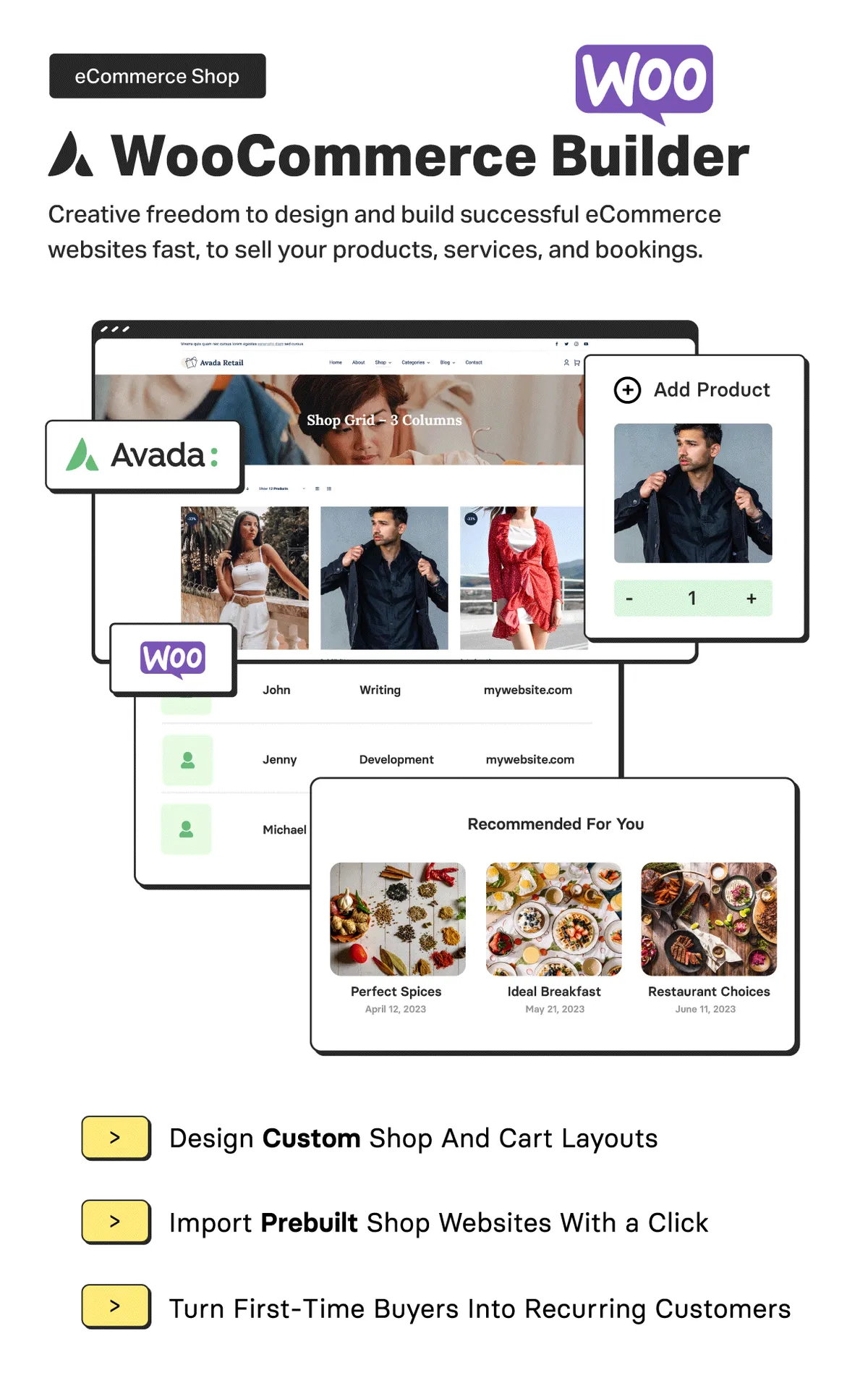
If you sell products, the WooCommerce Builder is one of the strongest reasons to choose Avada. WooCommerce gives you the shop itself. Avada gives you control over how the shop looks. You can design the shop page, single product pages, cart, checkout, and thank-you pages with the same visual builder you use for the rest of the site, instead of accepting the default WooCommerce layout.
Practical things you can do include designing product pages with image galleries, reviews, related products, and trust badges in the exact order you want, building custom shop layouts with filters and quick-view options, and creating checkout pages that match your brand instead of looking like a generic plugin. For store owners, that control is directly connected to sales. A clear product page with good images, a visible price, and a simple checkout will sell more than a beautiful homepage with a confusing store.
Avada also supports the WooCommerce features stores actually need, including product variations, sale badges, wishlists, and compatibility with popular payment and shipping plugins. It is not a replacement for a dedicated conversion tool, and large stores with thousands of products should still plan their hosting and caching carefully, but for small and medium stores it removes the need for a separate shop theme or a custom WooCommerce developer for most designs.
4. Layout, Header, Footer, and Mega Menu Builders
Most themes give you one header and one footer. Avada gives you builders for them. The Layout Builder lets you create custom headers, footers, page title bars, and content layouts, then assign them to different parts of your site. Your shop can have a different header from your blog. Your landing pages can have no header at all. A special promotion page can use a completely different footer.
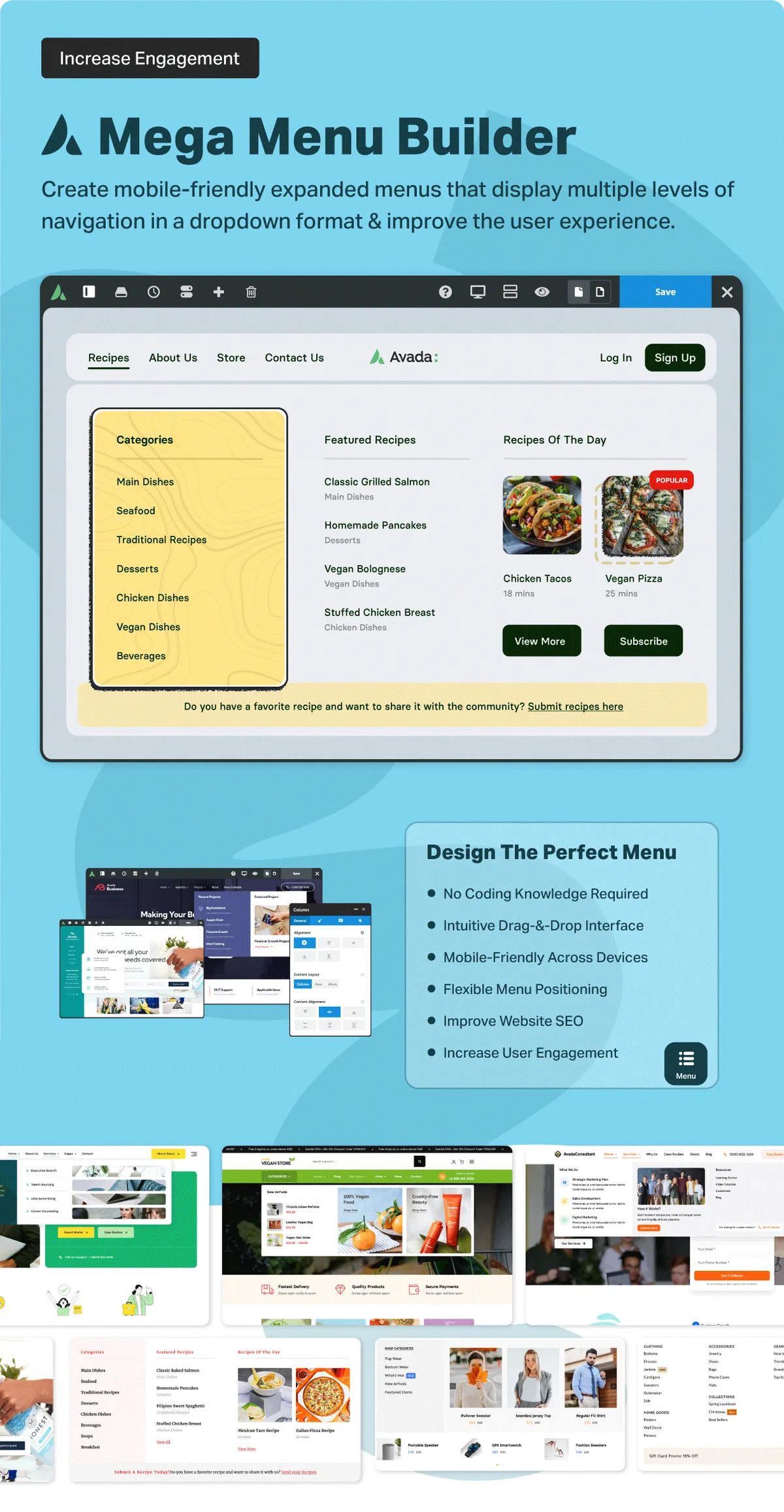
The Header Builder is where this becomes practical. You can build a header with your logo, navigation, search, cart icon, call button, and social links in any arrangement, then create a sticky version that stays visible when visitors scroll, and a mobile version that works on small screens. The Mega Menu Builder lets you turn an ordinary dropdown menu into a large, visual menu with images, columns, icons, and featured content. For a store with many categories, or a business with many services, a good mega menu is the difference between visitors finding what they need and visitors leaving.
There is also a Form Builder for contact forms, quote forms, and signup forms, and an Off-Canvas Builder for slide-in panels, popups, and mobile menus. Used together, these builders mean you rarely need extra plugins for layouts, menus, and forms. The downside is choice overload. With this many builders, a beginner can spend a long time perfecting a header that visitors barely notice. Build the pages first, then polish the header and footer once the content is ready.
5. Six Premium Plugins Bundled In
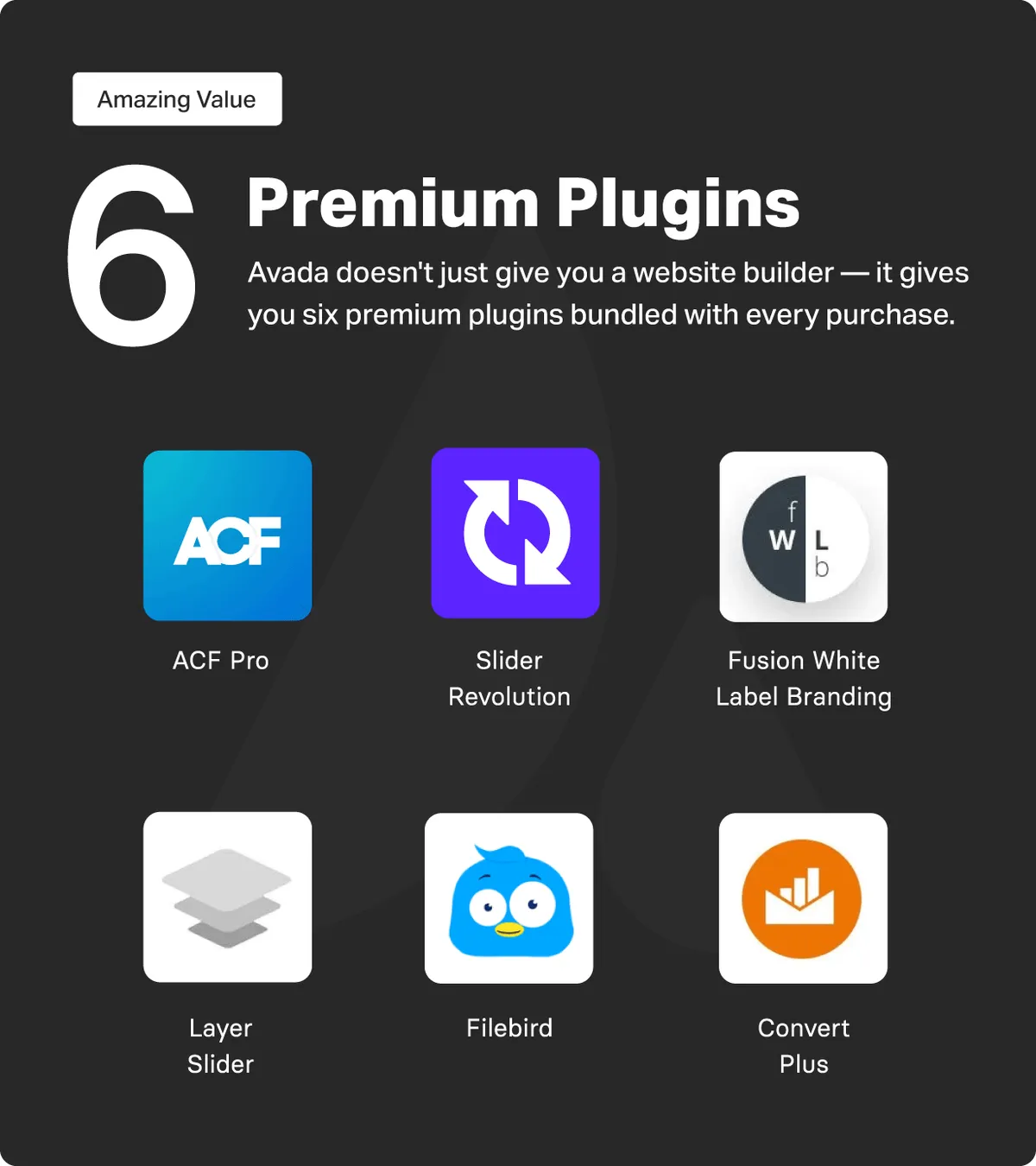
Avada bundles six premium plugins at no extra cost: Slider Revolution, LayerSlider, Advanced Custom Fields Pro, Convert Plus, FileBird Pro, and Avada Custom Branding. Bought separately, these plugins would cost far more than the theme itself, so the bundle is a genuine saving, not a marketing trick. But the value depends on whether you will actually use them.
Slider Revolution and LayerSlider let you build animated sliders and hero sections. They are powerful, but a slider should be used with restraint. One clear hero message converts better than five rotating slides that visitors never wait to see. Advanced Custom Fields Pro is a developer favorite. It lets you add custom fields to posts, pages, and products, which is useful for directories, listings, and custom content types. Convert Plus adds popups, slide-ins, and opt-in forms for email list building. FileBird Pro organizes your media library into folders, which sounds small until your library has thousands of images. Avada Custom Branding lets agencies replace Avada branding with their own when they hand a site to a client.
One important detail: the bundled plugins are licensed through Avada. You get updates through Avada, but you do not get separate premium support from each plugin author unless you buy a separate license. For most users that is fine. Install the plugins you need, leave the rest deactivated, and do not install all six just because they are free. Every active plugin adds weight to your site.
6. Performance Wizard, SEO, and Accessibility
Avada is a feature-rich theme, and feature-rich themes can be slow if you turn everything on at once. ThemeFusion knows this, which is why Avada includes a Performance Wizard. It walks you through the performance settings step by step, including which features to load, how to handle icons and fonts, and how to use caching. You do not need to understand every setting. You need to follow the wizard, test your site speed, and keep the features you actually use.
Speed is not only about the theme. Your hosting, image sizes, and plugin choices matter just as much. A practical rule is to compress every image before you upload it, use a good caching plugin, and test your site with a speed tool after launch. Avada also supports SEO-friendly structure, clean headings, and schema-friendly content, and it works with Rank Math and other SEO plugins rather than fighting them. That is the right approach. A theme should give you clean HTML and let a dedicated SEO plugin handle the metadata.
Avada is also fully responsive, so your site adapts to phones, tablets, and desktops, and it includes accessibility features such as keyboard navigation support and options for better contrast and readable text. Responsive design is not a bonus in 2026. Most visitors will find your site on a phone, so always preview every important page on a mobile screen before you publish it.
Avada Pricing and License
Avada pricing is refreshingly simple, and it is important to understand it correctly, because this is not a subscription. It is a one-time purchase of a WordPress theme on ThemeForest, under Envato’s standard theme license. You pay once, and the theme is yours to use on one website per license, with free updates for the life of the product.
| License | Price (verified 6 November 2026) | What It Includes |
|---|---|---|
| Regular License | $69 one-time | Use Avada on one website (one end product), free updates for the life of the product, 6 months of support from ThemeFusion, and the 6 bundled premium plugins |
| Extended License | $2,950 one-time | Use Avada on one website where visitors can be charged for access to the end product, with the same updates and 6 months of support included |
Most buyers need the Regular License. The Extended License is only for a specific situation: you are building a website where the end product itself is sold or charged for, such as a paid membership site built on the theme. If you are building a normal business website, a blog, or an online store where you sell your own products, the Regular License is the right one. If you are unsure, read the license terms on the official ThemeForest page before you buy. The price above was checked live on 6 November 2026, so if you are reading this later, check the current price on Avada on ThemeForest before you purchase.
Support deserves a clear explanation. Your $69 includes six months of support from ThemeFusion. That means if something in Avada does not work as described, you can ask the author for help for six months after purchase. After that, you can extend support for a fee, or keep using the theme with free updates. Your website does not stop working when support ends. The theme, your content, and your updates continue. That is a meaningful difference from subscription tools that stop working when you cancel.
Is Avada Worth It?
For most buyers, yes. The honest way to judge Avada is to compare it with the alternatives. Buying a $69 theme that can build almost any site is cheaper than buying three different $59 themes for three different projects. It is also cheaper than hiring a developer to build a custom header, a custom shop layout, and a custom mega menu. For an agency, one Avada license per client site is a small part of the project fee. For a freelancer, it is a tool that pays for itself on the first client project.
Value also comes from time. A prebuilt website can save a week of design work. A visual builder can save days of back-and-forth with a developer over small changes. Global elements and saved layouts can save hours on every subsequent page. If you value your time at even a modest hourly rate, Avada pays for itself quickly. That said, Avada is worth it only if you will use its flexibility. If you want a simple blog with a fixed design and you will never change the layout, a lighter, simpler theme may be a better fit and a better use of your money.
There is one more way to think about it. Avada is a long-term platform choice. Because your layouts are built in Avada’s builder, switching themes later means rebuilding pages. So buy Avada when you are ready to commit to it for at least a year or two. If you do, the $69 one-time cost is one of the cheapest parts of running a professional website. Hosting, a domain, and your time will all cost more.
Avada Pros and Cons
Pros
- One $69 one-time payment with a Regular License and free updates for the life of the product.
- Live Visual Builder that lets you edit pages on the front end, with no coding needed.
- 110+ prebuilt websites for almost every industry, with selective import.
- Strong WooCommerce builder for shops, product pages, cart, and checkout.
- Header, footer, layout, mega menu, form, and off-canvas builders included.
- Six premium plugins bundled in, including Slider Revolution, LayerSlider, and ACF Pro.
- Excellent track record: 4.78/5 from 26,605 reviews and more than 1,000,000 users.
- Responsive, SEO-friendly structure, and regular updates from ThemeFusion.
Cons
- One license covers one website, so agencies need a license for each client site.
- Feature-rich themes can be slower than minimal themes if you enable everything.
- There is a learning curve. The Theme Options panel and many builders can feel overwhelming at first.
- Layouts built in the Avada builder do not transfer cleanly if you switch themes later.
- Only 6 months of support is included. Longer support costs extra.
- Bundled plugins are updated through Avada, with no separate premium plugin support included.
- Two slider plugins are bundled, which can tempt beginners to add heavy sliders that slow the site.
Who Should Buy Avada?
Avada is a strong match for agencies and freelancers building client websites, small businesses that want a professional site without a developer, online store owners who want to design their WooCommerce shop, and bloggers or creators who want one theme for many projects. It is less suited to anyone who wants the fastest possible minimal blog theme, or to a developer who prefers to build every layout from scratch with a lightweight starter theme.
Avada vs Divi
| Avada | Divi | |
|---|---|---|
| Price | $69 one-time, Regular License | Yearly or one-time payment to Elegant Themes |
| Builder | Live Visual Builder, front-end editing | Divi Builder, front-end editing |
| Prebuilt designs | 110+ complete websites | 300+ layout packs |
| WooCommerce | Dedicated WooCommerce builder | WooCommerce modules included |
| Best for | Agencies, businesses, and stores wanting one flexible theme | Users who want a builder usable across many themes |
Frequently Asked Questions
Is Avada good for beginners?
Yes, if you start with a prebuilt website and edit it. The visual builder is friendly, but the Theme Options panel takes a few days to learn. Give yourself a week with a test site before building the real one.
Is Avada good for WooCommerce?
Yes. Its WooCommerce builder lets you design shop, product, cart, and checkout pages visually, which is a real advantage over themes that only style the default WooCommerce layout.
How many websites can I use Avada on?
One website per Regular License. For each additional website, you need another license.
Does Avada slow down my site?
It can, if you enable every feature and use heavy sliders and large images. Use the Performance Wizard, compress images, use good hosting and caching, and it performs well for a feature-rich theme.
Final Verdict
Avada remains the best-selling WordPress theme for a reason. For $69 one-time, you get a live visual builder, 110+ prebuilt websites, a WooCommerce builder, six bundled premium plugins, and free updates for the life of the product, backed by a 4.78/5 rating from more than 26,000 buyers. It is not the lightest theme, and it takes time to learn, but for agencies, freelancers, and business owners who want one reliable theme for almost any website, it is still the best value on ThemeForest in 2026.
Affiliate Disclosure: This review contains affiliate links. If you buy through our link to the official ThemeForest listing, we may earn a commission at no extra cost to you. Prices, ratings, and version details were verified live on ThemeForest on 6 November 2026.