Best Screen Recording Software for Small Businesses in 2026
Choosing the best screen recording software for your small business should be simple. You want to record your screen, explain something clearly, and share the video without a fight. Yet open any list of tools and you will find dozens of options, different prices, and features you will never use. This guide cuts through that noise.
In this guide to the best screen recording software, I tested the claims on each vendor’s own website and checked every price on 8 November 2026. You will find eight tools, from free favourites to professional editors, with honest pricing, real limits, and clear advice on who each one suits. By the end, you will know which recorder to download first.
What to Look for in Screen Recording Software
Before you compare prices, here is what actually matters in the best screen recording software for a small team. Get these five things right and you will not regret your choice.
Ease of use. You should be able to press record and talk. If a tool needs a manual and a training session, your team will not use it. The best recorders let you pick a window, press one button, and stop when you are done.
Recording quality. Look for 1080p as a minimum, and 4K if you record product demos. Also check whether you can record your webcam at the same time as your screen, and whether the tool records system audio and your microphone together.
Editing. A little editing goes a long way. Trimming the start and end, cutting a mistake, and adding a title are usually enough. Full video editing is a bonus, not a must, unless you make training courses.
Sharing. A good recorder gives you a shareable link in seconds, not a huge file you have to upload somewhere else. Cloud hosting, instant links, and simple download options all help.
Price and limits. Check the free plan honestly. Some free plans limit recordings to five minutes or add a watermark. Others are free forever with no catch. And always check whether the price is per user, per month, or per year, because that changes the real cost fast. If you are new to buying software for your business, our guide on how to choose the right SaaS tool will help you compare the total cost, not just the headline price.
Best Screen Recording Software: The 8 Tools Compared
Here are the eight tools, in order. Each one is different, and each one is the right answer for a different kind of small business.
1. Loom
Loom is the best screen recording software for quick video messages and async updates. Instead of booking a meeting, you record your screen and your face, send the link, and your team watches it when it suits them. It is the tool most small teams reach for first when they want to replace meetings with short videos.
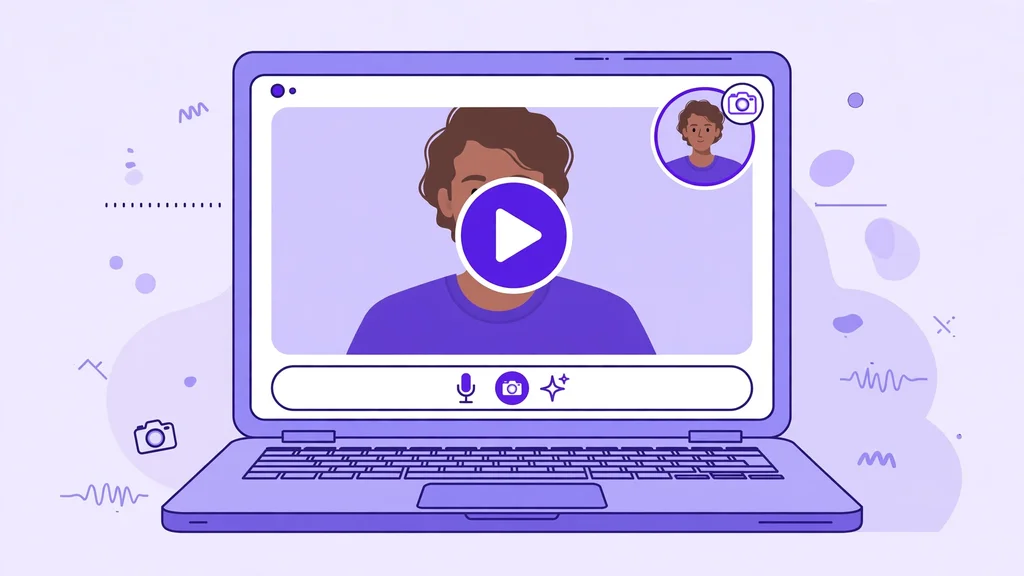
Best for: quick updates, product walkthroughs, customer support replies, and onboarding videos.
Key features: screen and webcam recording, instant shareable links, AI transcripts, titles and summaries, filler-word removal, engagement insights that show who watched, and apps for web, desktop, Mac, Windows, iOS, and Android.
Pricing: the Starter plan is free, with 25 videos and 5-minute recordings. The Business plan costs $18 per user per month with monthly billing, and annual billing saves up to 17%. The Business + AI plan costs $24 per user per month with monthly billing. You can check the full details on the Loom pricing page . If you want a step-by-step start, read our guide on how to use Loom for beginners .
2. OBS Studio
OBS Studio is the best screen recording software for anyone who wants a powerful tool for free. It is free and open source, with no time limits, no watermark, and no paid plan. It is the tool most YouTubers and streamers started with, and it is just as useful for a small business that wants clean, high-quality recordings without spending a dollar.
Best for: free recording, live streaming, webinars, and multi-source recordings.
Key features: unlimited recording, scene and source mixing, live streaming to YouTube, Twitch, and other platforms, audio mixing, hotkeys, custom transitions, and plugins. It runs on Windows, macOS, and Linux.
Pricing: free, forever. There is no paid version and no premium tier. You can download it from the OBS Studio website . The trade-off is that OBS Studio has no built-in video editor and no cloud hosting, so you will need another tool if you want to edit or share your videos easily. It also takes longer to learn than any other tool on this list.
3. Camtasia
Camtasia is the best screen recording software for polished training videos and courses. It combines a screen recorder with a proper video editor, so you can record, cut, add callouts, zoom in on details, and export a finished video without leaving the app. If your videos represent your business, Camtasia gives them a professional finish.
Best for: training videos, product tutorials, online courses, and polished demos.
Key features: screen and webcam recording, drag-and-drop video editor, annotations, callouts, transitions, animations, templates, and quizzes. It runs on Windows and Mac, and a free trial is available.
Pricing: Camtasia is sold as a yearly subscription. The Starter plan costs $39 per year, Essentials costs $179.88 per year, Create costs $249 per year, and Pro costs $599 per year. Essentials is the full editor most small businesses need. You can check the full details on the Camtasia store page .
4. ScreenPal
ScreenPal is the best screen recording software for small teams on a tight budget. It is simple to use, it runs on almost any device, and its paid plans start at just a few dollars a month. It used to be called Screencast-O-Matic, and many teachers and small teams have used it for years.
Best for: simple recordings, quick edits, schools, and small teams that need an affordable all-rounder.
Key features: screen and webcam recording, a simple video editor, cloud hosting, easy sharing, and apps for Windows, Mac, iOS, Android, and Chromebook.
Pricing: the Free plan costs $0 and allows 15-minute recordings and 10 hosted videos. The Deluxe plan costs $4 per month when paid annually, the Max plan costs $10 per month when paid annually, and the Team Business plan costs $8 per user per month when paid annually. You can check the full details on the ScreenPal plans page .
5. Snagit
Snagit is the best screen recording software for quick captures and short clips. Made by TechSmith, the same company behind Camtasia, Snagit is the fastest way to grab a screenshot, mark it up, or record a short video and send it to a colleague or customer. It is not a full video editor, but for everyday captures it is hard to beat.
Best for: screenshots with markup, short how-to clips, support replies, and documentation.
Key features: screenshot capture, scrolling capture, simple screen recording, annotations, arrows and callouts, step-by-step guides, and sharing to email, cloud, and documents. It runs on Windows and Mac, and a free trial is available.
Pricing: Snagit costs $39 per user per year. You can check the full details on the Snagit store page .
6. Movavi Screen Recorder
Movavi Screen Recorder is the best screen recording software for people who want editing without a learning curve. It records your screen, webcam, and audio, and then lets you cut and polish the result with simple tools. It also has a handy scheduler, so you can set a recording to start and stop at a set time.
Best for: easy recording and editing, scheduled recordings, and capturing online meetings or webinars.
Key features: screen and webcam recording, scheduled recording, simple video editing, screenshots, mouse and keystroke display, and apps for Windows and Mac. A free version is available to try.
Pricing: the Screen Recorder costs $19.95 for 1 month, or $44.95 for 1 year (list price $64.95, 30% off until 15 November 2026). A bundle of the Screen Recorder and the Video Editor costs $59.95. You can check the full details on the Movavi Screen Recorder page .
7. Icecream Screen Recorder
Icecream Screen Recorder is the best screen recording software for simple, low-cost recording on Windows and Mac. The interface is clean, the recorder is easy to learn, and the price is low, especially if you choose the lifetime deal and never pay again.
Best for: simple recordings, beginners, and anyone who wants a one-time payment instead of a subscription.
Key features: screen and webcam recording, scheduled recording, annotations, screenshot tools, and apps for Windows and Mac.
Pricing: the Free version allows recordings of up to 5 minutes and adds a watermark to your videos. The PRO plan costs $29.95 for 1 year, billed annually, and the Lifetime plan costs $59.95 as a one-time payment. You can check the full details on the Icecream Screen Recorder page .
8. ApowerREC
ApowerREC is the best screen recording software for teams that record on several devices. It runs on Windows, Mac, iOS, and Android, so you can record a desktop demo in the morning and a phone app in the afternoon with the same tool. It is a solid all-rounder with a good range of recording modes.
Best for: multi-device recording, mobile app demos, and teams that work on both computers and phones.
Key features: full-screen and region recording, webcam overlay, scheduled recording, simple editing, and apps for Windows, Mac, iOS, and Android. A free download is available.
Pricing: the Yearly plan costs $39.95 (list price $129.85), and the Lifetime plan costs $69.95 (list price $259.85). Both include ApowerEdit for free, and there is a Buy 1 Get 1 Free offer on the store page. You can check the full details on the ApowerREC page .
Best Screen Recording Software Compared: All 8 at a Glance
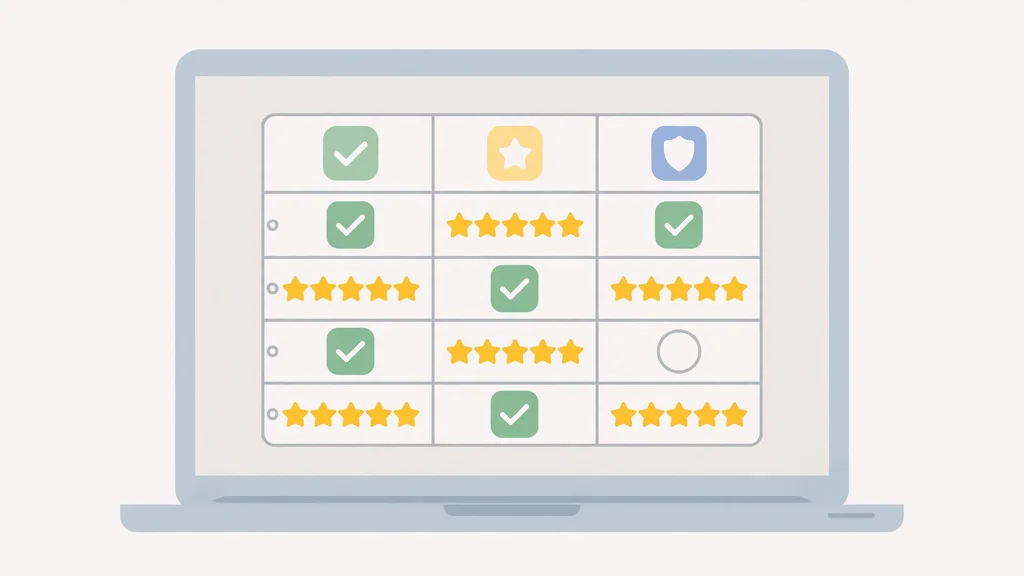
| Tool | Starting price | Platforms | Best for |
|---|---|---|---|
| Loom | Free; $18 per user per month | Web, Mac, Windows, iOS, Android | Quick video messages |
| OBS Studio | Free ($0) | Windows, macOS, Linux | Free recording and streaming |
| Camtasia | From $39 per year | Windows, Mac | Polished training videos |
| ScreenPal | Free; from $4 per month (annual) | Windows, Mac, iOS, Android, Chromebook | Simple recording on a budget |
| Snagit | $39 per user per year | Windows, Mac | Quick captures and short clips |
| Movavi Screen Recorder | From $19.95 (1 month) | Windows, Mac | Easy editing and scheduling |
| Icecream Screen Recorder | Free; PRO $29.95 per year | Windows, Mac | Simple, low-cost recording |
| ApowerREC | From $39.95 per year | Windows, Mac, iOS, Android | Multi-device recording |
How to Choose the Right Screen Recording Software
The best screen recording software is not the one with the longest feature list. It is the one your team will actually use, week after week. Use these four steps to choose.
Step 1: Decide what you will record. If you mostly send quick updates, Loom or ScreenPal will do. If you make training courses, Camtasia is worth the money. If you stream or record games and webinars, OBS Studio is free and powerful.
Step 2: Try the free version first. Every tool on this list has a free plan, a free trial, or a free download. Record a real video for your business before you pay. If the tool feels awkward in the first ten minutes, it will not get better later.
Step 3: Check the limits that matter to you. Free plans often limit recording length or add a watermark. Loom’s free plan allows 5-minute recordings, ScreenPal’s allows 15 minutes, and Icecream’s free version allows 5 minutes with a watermark. If your videos are longer than that, you will need a paid plan.
Step 4: Count the total cost. A price of $4 a month sounds cheap until you pay it for ten people for a year. A lifetime deal like Icecream’s $59.95 or ApowerREC’s $69.95 can be cheaper over time than a monthly subscription. And if your team also needs video meetings, read our comparison of Google Workspace vs Microsoft 365 to pick the right suite for calls and collaboration.
Frequently Asked Questions
What is the best free screen recording software?
OBS Studio is the best free option because it is completely free, has no time limits, and adds no watermark. Loom’s free Starter plan is the best free option if you want instant shareable links and a simple interface, but it limits recordings to 5 minutes and 25 videos.
Is Loom free?
Yes, Loom has a free Starter plan with 25 videos and 5-minute recordings. Paid plans start at $18 per user per month with monthly billing. Annual billing saves up to 17%.
Which screen recorder is best for beginners?
Loom and ScreenPal are the easiest to learn. You press record, talk, and share the link. Icecream Screen Recorder is also very simple. OBS Studio is the hardest to learn of the tools on this list, but it is free and very powerful once you know it.
Can I record my screen with audio?
Yes. All eight tools on this list record system audio and microphone audio. Loom, OBS Studio, Camtasia, ScreenPal, Movavi, Icecream, and ApowerREC all let you record your voice over the screen, and most also let you add your webcam at the same time.
Do I need a paid plan to remove the watermark?
It depends on the tool. OBS Studio and Loom’s paid plans have no watermark. Icecream’s free version adds a watermark, so you need the PRO plan at $29.95 per year or the $59.95 lifetime plan to remove it. Movavi’s paid plans have no watermark. Always check the free plan’s limits before you record an important video.
What is the cheapest screen recording software for a small business?
OBS Studio costs nothing, which makes it the cheapest by far. Among paid tools, ScreenPal’s Deluxe plan at $4 per month when paid annually is the cheapest subscription, and Icecream’s $59.95 lifetime plan can be the cheapest over time because you only pay once.
Which screen recorder is best for training videos?
Camtasia is the best choice for training videos because it combines recording with a full editor, annotations, callouts, and quizzes. If your budget is smaller, ScreenPal’s Max plan at $10 per month when paid annually is a good alternative for simple training content.
Can I record my phone screen?
Yes, with the right tool. Loom, ScreenPal, and ApowerREC all have iOS and Android apps, so you can record your phone screen directly. On a computer, OBS Studio can capture a phone screen through a connected device or a mirroring tool.
Conclusion
The best screen recording software for your small business is the one your team will actually use. For most small businesses, that is Loom. It is free to start, it takes minutes to learn, and it replaces meetings with short videos your team can watch any time. If you need to record for free with no limits, OBS Studio is the clear winner. And if you make training videos that represent your brand, Camtasia is worth every dollar of its $179.88 per year Essentials plan.
Start with a free plan or a free trial, record a real video for your business this week, and only pay when you know the tool fits how you work. Prices change, so check the vendor’s website before you buy, and pick the recorder that makes your work easier, not harder.
Prices in this article were checked on each vendor’s official website on 8 November 2026. Prices can change, so check the vendor’s pricing page before you buy.