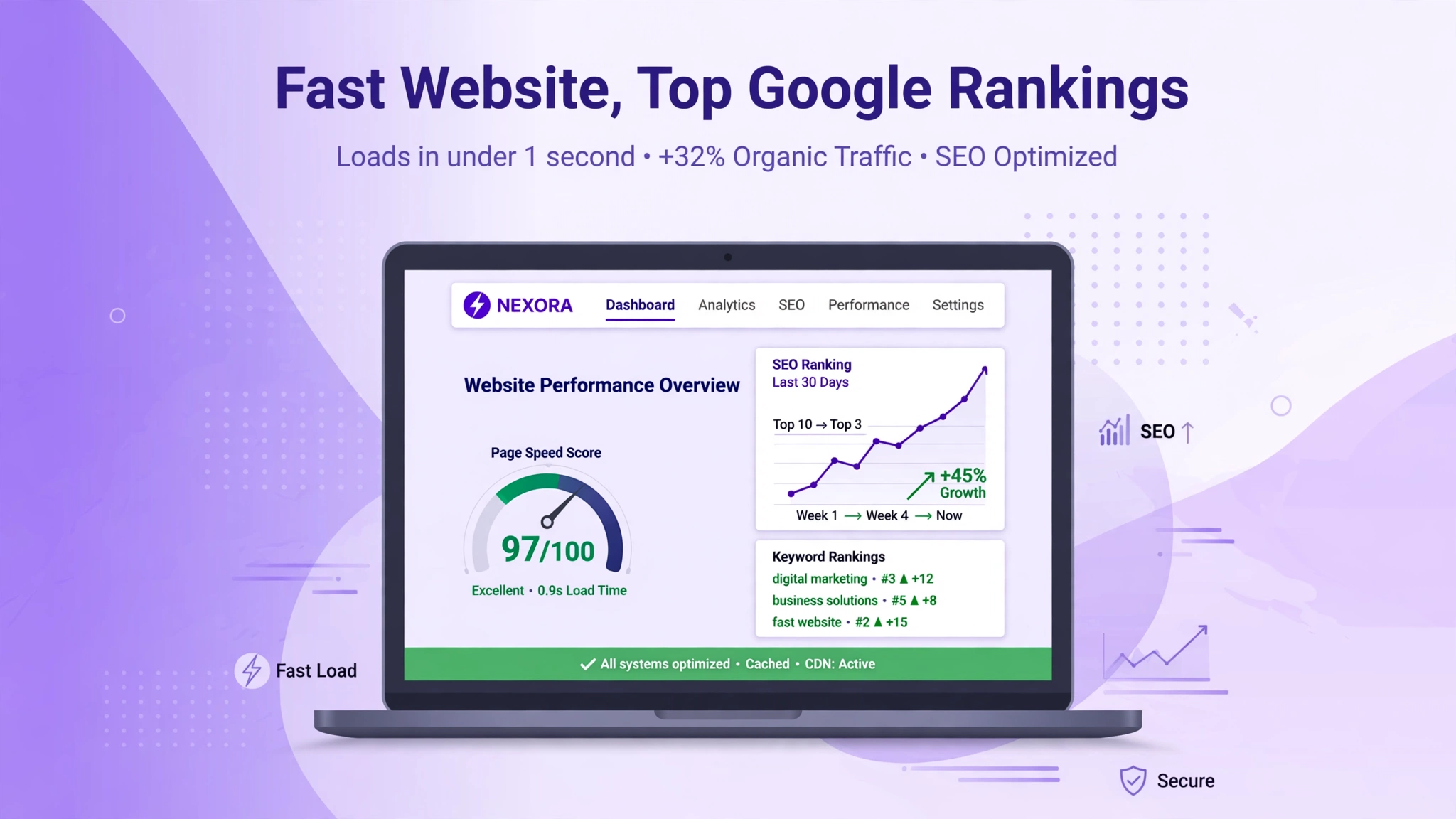
How to Create a Business Website That Loads Fast and Ranks on Google
Learning how to create a business website that loads fast is one of the best investments a small business can make. Your website is often the first place a customer meets your business, and that first meeting lasts only a few seconds. If the page opens quickly, looks clear, and answers the visitor’s question, that person is far more likely to stay, trust you, and get in touch. If it loads slowly, many visitors will leave before they ever read a word about what you sell.
This guide walks you through the whole process, step by step, in plain language. You will plan the site, choose a domain and hosting, build it with WordPress, speed it up, make it easy to find on Google, write content people actually want to read, and then measure what is working. You do not need to be a developer. You do need a little patience, a clear plan, and the willingness to test things instead of guessing.
Speed and search rankings are connected, but they are not the same job. A fast website gives Google a better experience to rank, and it gives visitors a better reason to stay. Good content and clear pages give Google a reason to show you for the searches that matter. When you work on both together, each one makes the other stronger. That is the approach in this guide.
Why a Fast Website Matters More Than a Pretty One
A beautiful website that takes a long time to open is like a shop with a locked door and a lovely window display. People can see that something nice might be inside, but most of them will not wait to find out. On a phone, on a slow connection, or in the middle of a busy day, patience is even shorter. A visitor who came from Google can go back to the search results in one tap and choose a competitor instead.
Speed also affects how people feel about your business. A quick, smooth site feels professional and reliable. A slow, jumpy site feels unfinished, even if the business behind it is excellent. Visitors rarely think, “This site is slow because the hosting is cheap.” They simply feel frustrated and move on. That feeling sticks, and it can cost you enquiries, calls, and sales that you never hear about.
Google has said for years that page experience matters, and its Core Web Vitals are part of how it judges that experience. Speed alone will not put a weak page at the top of Google, and great content on a very slow site will still struggle. The goal is not perfection on day one. It is a site that opens quickly on a real phone, stays stable while it loads, and lets a visitor do the next thing — call, email, book, or buy — without friction.
Step 1: Plan Before You Build Anything
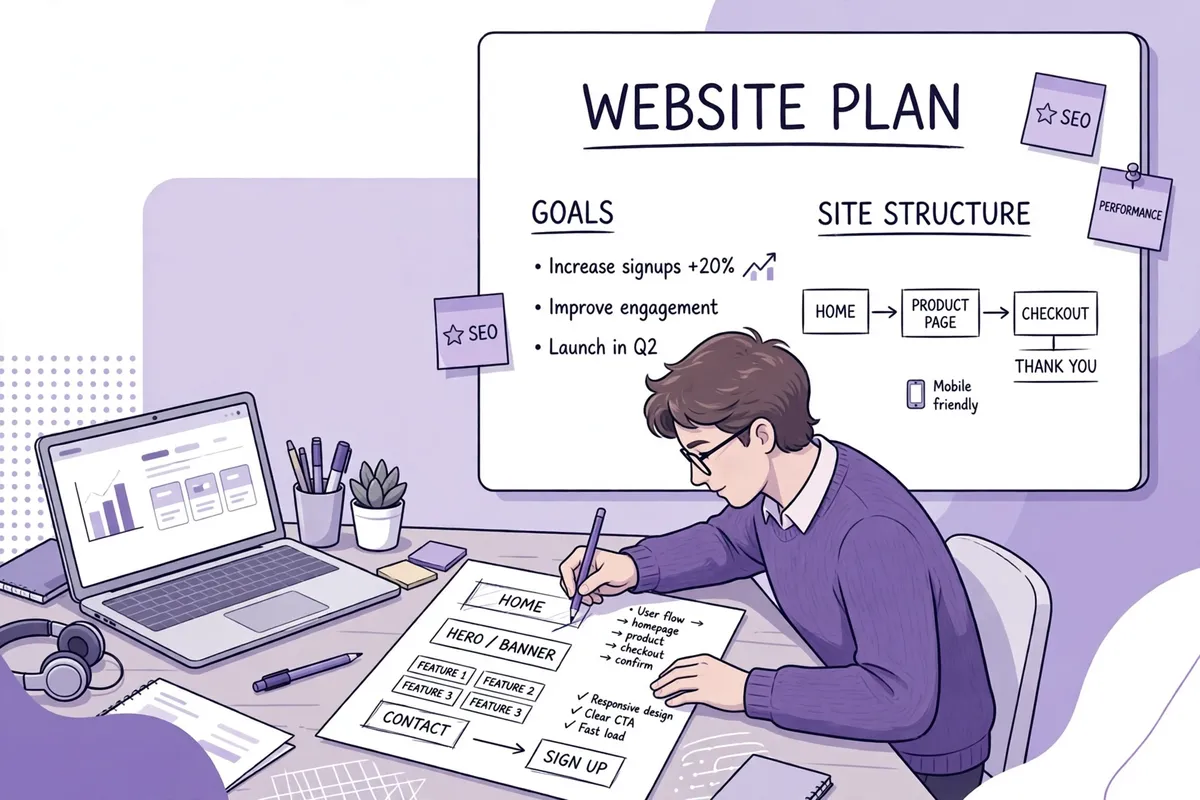
Most slow, confusing websites were not built badly on purpose. They were built without a plan. Someone added a slider, then a video, then five pop-ups, then a dozen plugins, and nobody stopped to ask what the site was for. Planning first saves you from that mess, and it makes every later decision easier, from hosting to images to the words on the homepage.
Start with one clear job for the website. For most small businesses, that job is simple: turn a visitor into an enquiry, a call, a booking, or a sale. Write that job down in one sentence. For example: “Help local homeowners request a quote for garden design in under two minutes.” Or: “Help busy parents book a haircut online without phoning.” When a page does not help that job, it probably does not belong on the site, or it belongs further down the page.
Know who the site is for
Write down who your best customer is, in real terms. What do they need right now? What worries them before they buy? What words do they use when they search? A plumber’s customer searches differently from a wedding photographer’s customer, and a local bakery’s customer searches differently again. If you try to speak to everyone, your homepage will say very little to anyone.
Sketch the pages you actually need
A small business rarely needs forty pages at launch. It needs a small set of clear, useful pages, done well. Start with a homepage that explains what you do, who it is for, and what to do next. Add a page for each main service, an about page that builds trust, a contact page with a simple form, and a way for people to see your work or read helpful articles. That is enough to launch, and you can add more pages when you have real content for them.
For each page, write one sentence about its purpose and one action you want the visitor to take. A service page might end with “Request a free quote.” A blog post might end with “See our service page” or “Join our email list.” If a page has no clear next step, visitors will read it and leave, even if they liked it. Planning those steps now is far easier than fixing a site full of dead ends later.
Step 2: Choose a Domain Name and Hosting That Will Not Slow You Down
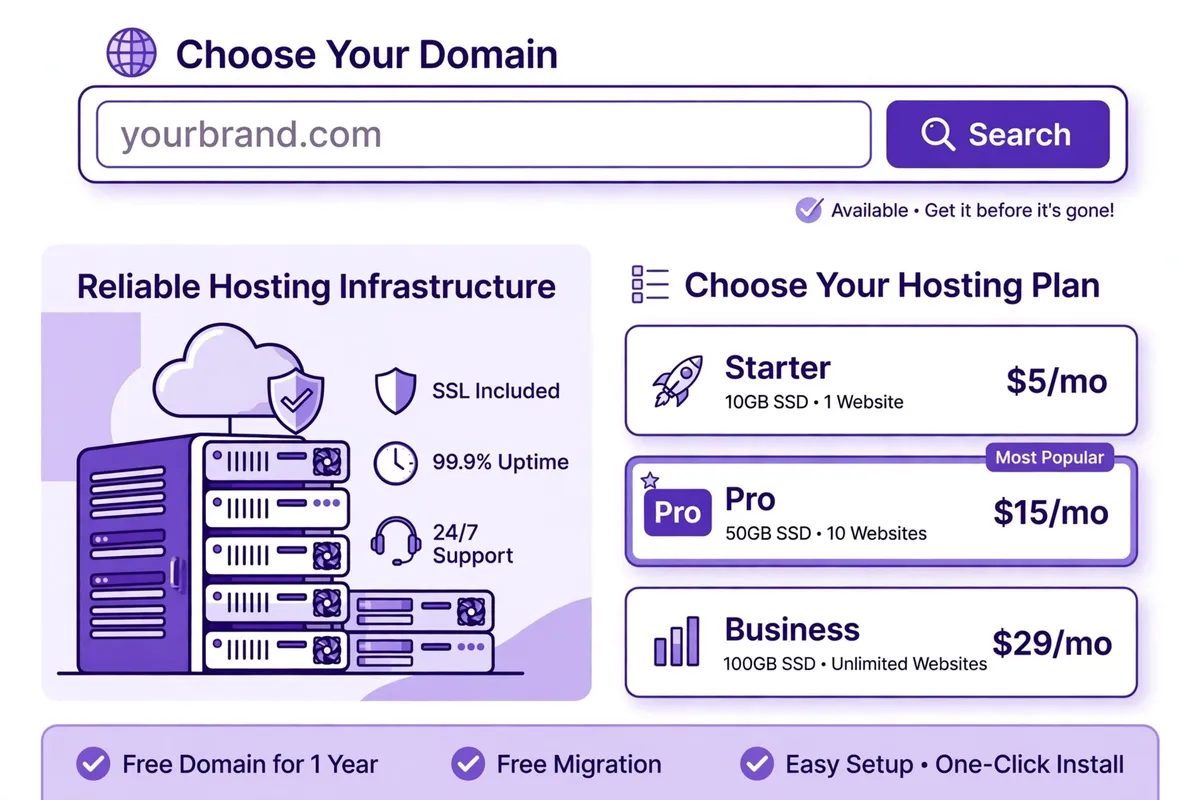
Your domain name is your address on the internet, and your hosting is the land your website sits on. Both choices affect speed, trust, and search visibility, and both are hard to change later without extra work. Take a little time here, and you will save yourself a move, a redirect, and a headache in a year or two.
Pick a domain people can remember and type
A good domain is short, easy to say out loud, and easy to spell after hearing it once. Your business name is usually the best starting point, especially if it is already known locally. Avoid long strings of words, hyphens, numbers, and clever spellings that people will get wrong. If a customer hears your domain on the radio, in a conversation, or in a video, they should be able to type it without asking you to spell it twice.
Before you buy, check that the name is not too close to a well-known brand or a competitor in your area. A name that causes confusion will cost you traffic and trust, and it can create legal trouble later. A quick search on Google and on social media will usually show whether the name is already in use in a way that would confuse your customers.
Hosting is where speed starts
Hosting is the computer that serves your website to every visitor. Cheap, crowded hosting can make even a light, well-built site feel slow, because your site is sharing limited resources with many others. Good hosting does the opposite: it answers quickly, handles busy periods without falling over, and gives you the tools to cache pages, use a content delivery network, and keep the site secure.
For most small businesses, managed WordPress hosting is the easiest starting point. The host looks after updates, backups, and basic security, and the server is set up for WordPress from the start. Shared hosting can work for a very small, simple site, but if you expect real traffic, or you plan to grow, the extra cost of better hosting usually pays for itself in speed and in the time you save. Look for solid-state storage, a data centre near your customers, free SSL, daily backups, and support that actually answers when something goes wrong.
Step 3: Set Up WordPress the Right Way
WordPress powers a huge share of business websites for a good reason: it is flexible, well supported, and you can build a fast site with it if you keep it clean. The problems start when a site collects too many themes, plugins, and half-finished experiments. A tidy WordPress install is a fast WordPress install.
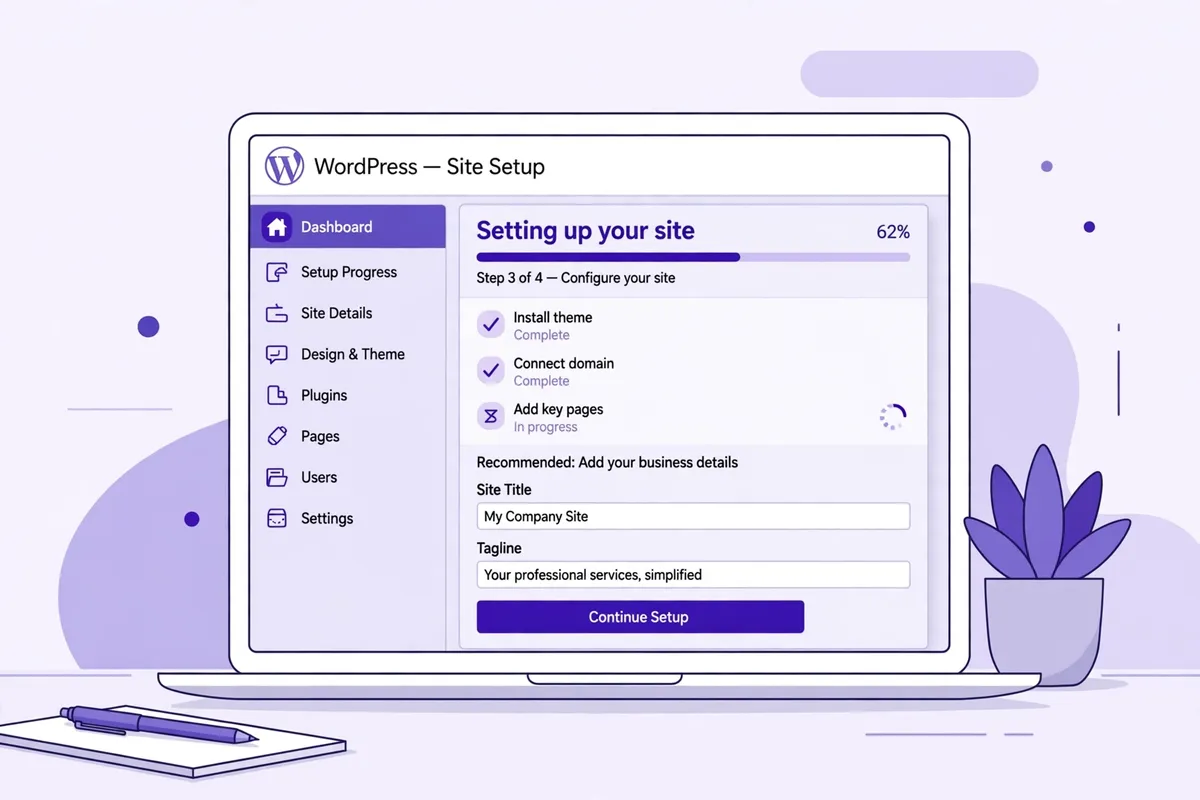
Most good hosts offer a one-click WordPress install. Use it, then do the basic housekeeping straight away. Choose a strong admin username that is not simply “admin,” use a long, unique password, and turn on two-factor authentication if your host or a security plugin offers it. Set your site title and tagline, set your time zone, and make sure your site address uses https, not http. That small lock icon in the browser matters for trust and for Google.
Next, set your permalinks to the post name structure, so your page addresses look clean and readable, like your domain followed by the page name, instead of a string of numbers. Delete the sample post, sample page, and any themes or plugins that came with the install and that you will not use. A clean install is easier to understand, easier to secure, and faster to load.
Install only the plugins you need for a clear job, and install them one at a time so you can see what each one does to your site. Before you add a plugin, check when it was last updated, how many people use it, and whether its reviews mention speed or conflicts. A plugin that has not been updated in a long time is a risk, even if it once worked well. If you are learning how to choose SaaS tools for your small business, use the same test here: does this tool solve a real problem, is it maintained, and is it worth the weight it adds to every page?
The essential setup checklist
Keep this short list beside you while you set up. First, an SSL certificate, so every page loads over https. Second, a backup system that runs automatically and that you have tested by restoring once. Third, a security plugin or your host’s built-in protection, with login limits and updates turned on. Fourth, an SEO plugin such as Rank Math, which you will use later for titles, descriptions, and sitemaps. Fifth, a caching plugin or your host’s built-in caching, which you will set up properly in a later step. That is enough to start. You can add a contact form, an analytics connection, and a cookie notice next, but do not add ten more tools just because they look useful.
Step 4: Choose a Lightweight Theme and Only the Plugins You Need
Your theme controls how your site looks and, to a large extent, how fast it loads. A heavy theme with built-in sliders, animations, and dozens of features you will never use will slow every page down, even before you add your own content. A light, well-coded theme does the opposite: it loads quickly, works well on a phone, and lets your content do the talking.
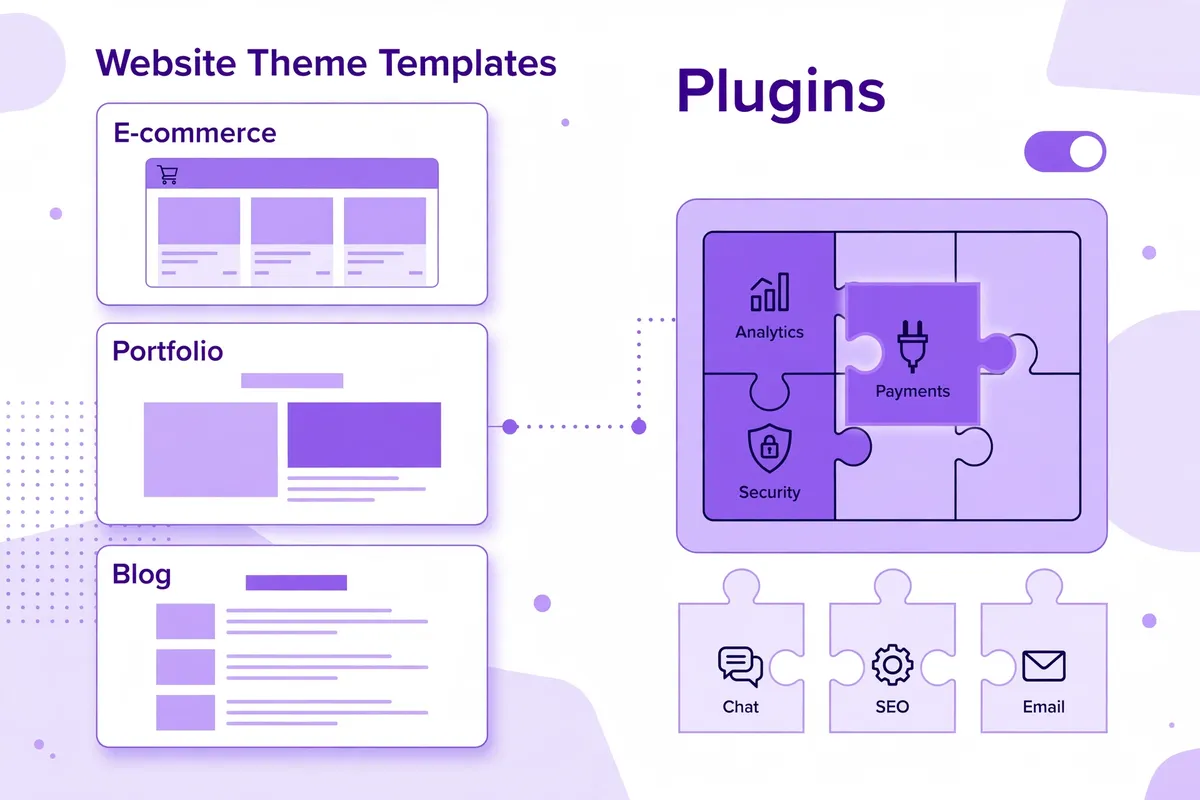
Look for a theme that is built for speed, is updated regularly, works with the WordPress block editor, and is easy to customise without adding a page builder that loads a lot of extra code. Read the theme’s documentation before you buy or install it, and check its demo on your phone, not just on a large screen. If the demo feels slow or cluttered, your site will feel slow and cluttered too.
Keep your plugin list short and honest. Every plugin adds code, and some add code to every page, even pages where they are not used. Ask for each one: what does this do that I cannot do without it, and is there a lighter way to do the same thing? A contact form, an SEO tool, a caching tool, and a backup tool cover most small business needs. A social feed, a live chat, and a pop-up tool can be useful, but each one should earn its place by bringing real enquiries, not just by looking impressive in a demo.
Step 5: Design Pages That Help Visitors and Google
Good design for a small business is not about showing off. It is about making the next step obvious. A visitor should be able to tell, within a few seconds, what you do, who you help, where you work, and how to contact you. Everything else on the page should support that, not compete with it.
Build a homepage that answers, not just impresses
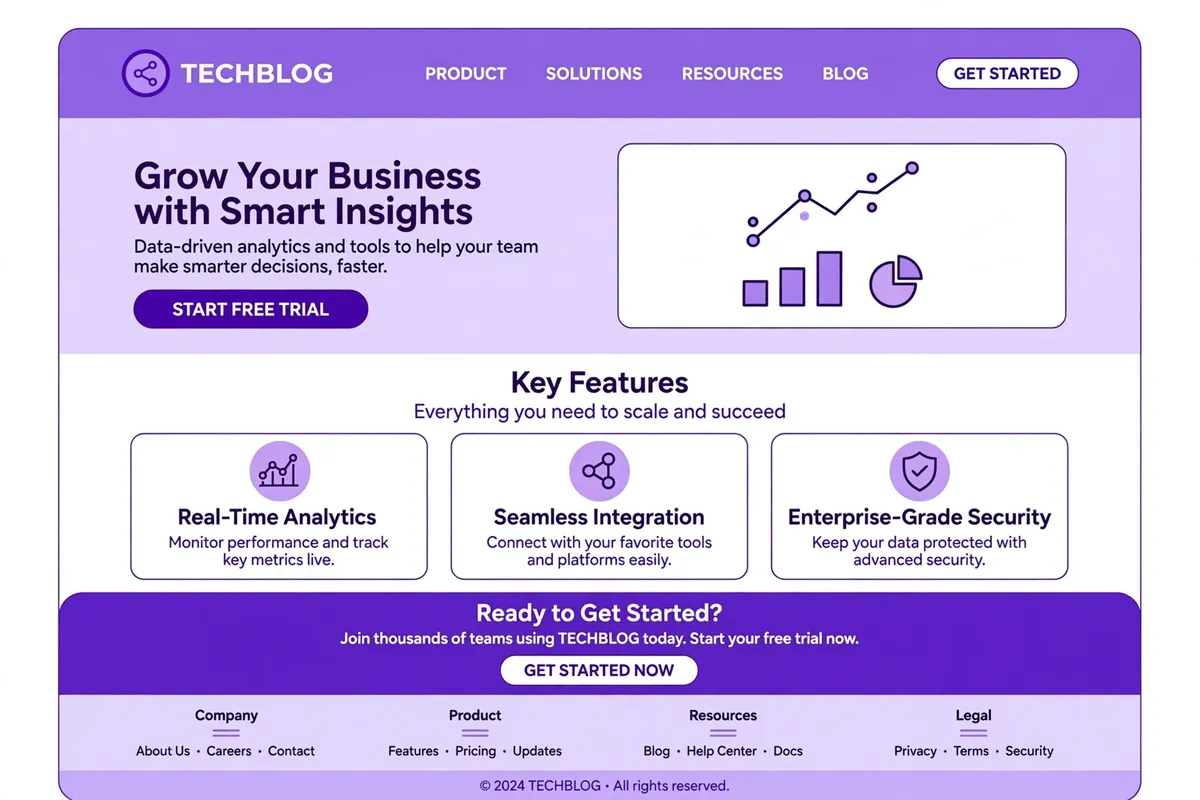
Start your homepage with a clear headline that says what you do and who it is for, in plain words. Follow it with one short sentence that explains the benefit, and one clear button, such as “Get a free quote” or “Book a call.” Put your phone number where people can find it without scrolling, especially on a phone. Then add a short section about your main services, a few examples of your work, a short customer comment, and a simple way to get in touch. That structure works for almost every small business, because it follows how people actually decide.
Give each service its own page
One page per service is better for visitors and for Google than one long page that tries to cover everything. A visitor looking for one service does not want to scroll through five others to find it, and Google finds it easier to rank a focused page for a focused search. On each service page, explain what is included, who it is for, how the process works, how long it usually takes, what it costs or how pricing works, and what the visitor should do next.
Your about and contact pages matter more than many owners think. The about page is where a cautious visitor checks whether you are a real, trustworthy business, so include a short, honest story, a photo, and the names or faces behind the work if you are comfortable sharing them. The contact page should be simple: a short form with only the fields you need, your phone number, your email, your address or service area, and your opening hours. Every extra field in a form is a reason for someone to give up halfway through, so keep it short. If you want to turn more visitors into customers, it also helps to learn how to create a sales funnel without coding, so each page leads naturally to the next step instead of leaving visitors to guess.
Step 6: Optimise Images Without Losing Quality
Images are the most common reason a small business website loads slowly. A photo straight from a phone or a camera can be several megabytes in size, and a page with five of those photos will take a long time to open on a mobile connection. The fix is not to remove images. It is to make each image only as large as it needs to be, and no larger.

Before you upload a photo, resize it to the largest size it will actually be shown at. A photo that will appear at 800 pixels wide does not need to be 4,000 pixels wide. Then compress it, so the file size drops without a visible loss of quality. Modern formats such as WebP usually give you a much smaller file than older formats for the same image, and WordPress and most image tools now support them well.
Use an image optimisation plugin or a tool that compresses images automatically when you upload them, but do not rely on it alone. The biggest wins still come from resizing before upload and from not using more images than the page needs. A page with three strong, relevant images will usually feel faster and look better than a page with twelve large, decorative ones.
Give every image a descriptive file name and helpful alt text. A file named with a clear description of what the image shows is better than a name like IMG_4821, and alt text helps visitors who use a screen reader, as well as Google, understand what the image is about. Write alt text the way you would describe the image to a person, and include your main topic naturally when it fits, without stuffing keywords into every image.
Step 7: Set Up Caching and a Content Delivery Network
Caching means saving a ready-made copy of a page, so WordPress does not have to build it from scratch for every visitor. A good caching plugin, or your host’s built-in caching, can make a noticeable difference, especially on pages that do not change often. Turn caching on, test the site as a visitor, and clear the cache after you change a page, or your visitors may keep seeing the old version.
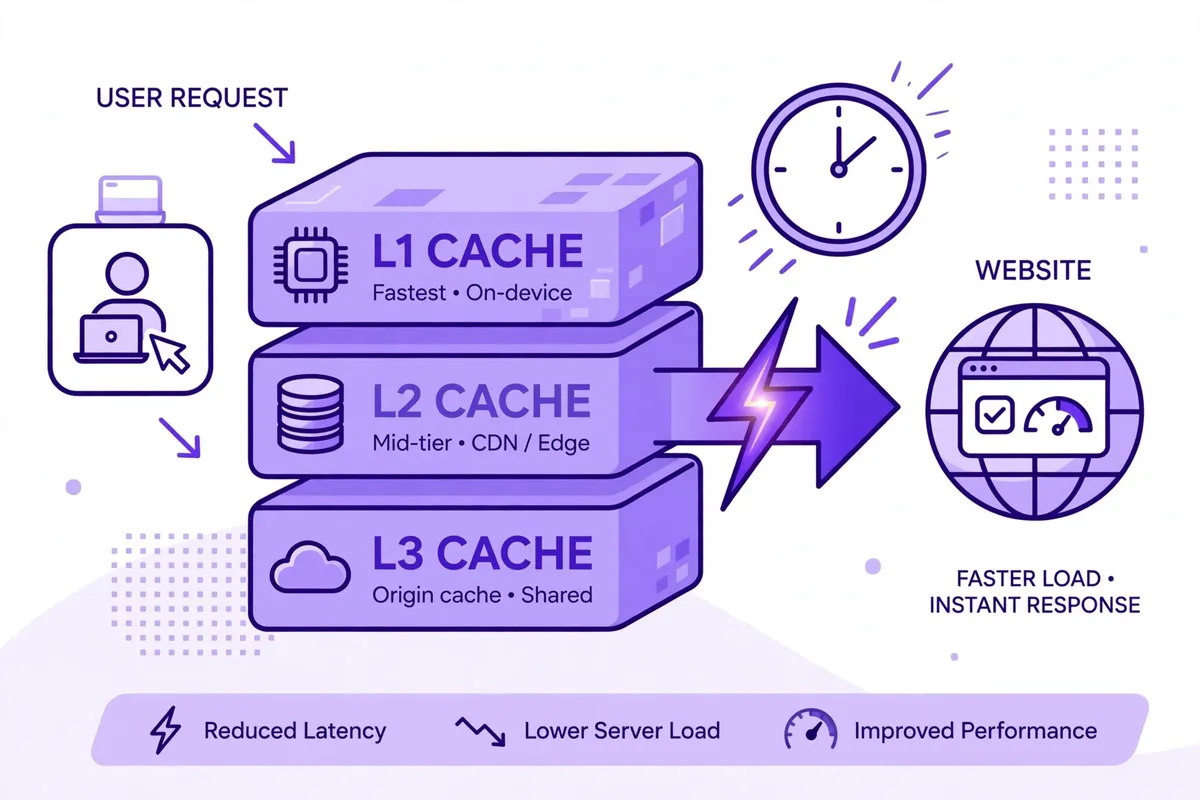
A content delivery network, or CDN, stores copies of your images and other files on servers around the world, so a visitor downloads them from a server near them instead of from one far away. Many CDNs offer a free starting plan, and most caching plugins can connect to one in a few clicks. If your customers are in one city or country, a CDN still helps, and if they are spread out, it helps even more. Keep the setup simple: cache pages, cache the browser copy for returning visitors, and use a CDN for your static files.
Step 8: Understand and Improve Core Web Vitals
Core Web Vitals are three simple ideas. The first is how quickly the main content appears, the second is how quickly the page responds when a visitor taps or clicks, and the third is how stable the page is while it loads. Google’s guidance is to aim for the main content in under two and a half seconds, a response in under two hundred milliseconds, and very little unexpected movement on the page. You do not need to memorise the names to improve them: a light theme, optimised images, caching, and fewer heavy scripts will improve all three.
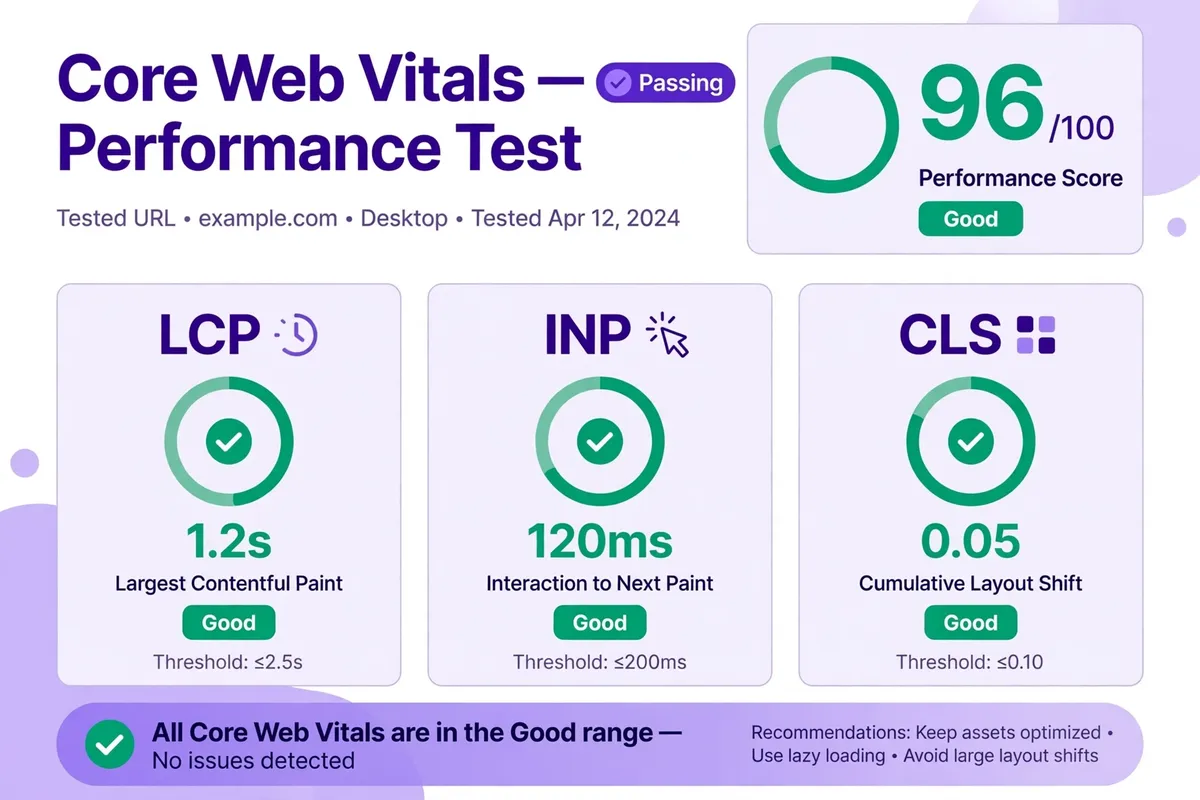
Test your homepage and one service page with a free tool such as PageSpeed Insights, and look at the mobile result first, because most visitors will come from a phone. Fix the biggest problem the tool lists, test again, and repeat. Do not chase a perfect score at the expense of a useful site. A page that is a little slower but answers the visitor’s question clearly is better than a very fast page that says nothing useful.
Step 9: On-Page SEO That Helps People Find You
On-page SEO is simply making it easy for Google and for people to understand what each page is about. Give each page one clear title that includes the words a customer would search for, write a short description that makes a person want to click, and use headings in a logical order, with one main heading and clear subheadings underneath. Write the first paragraph as if you are answering the visitor’s question directly, because that is often what Google shows in search results.
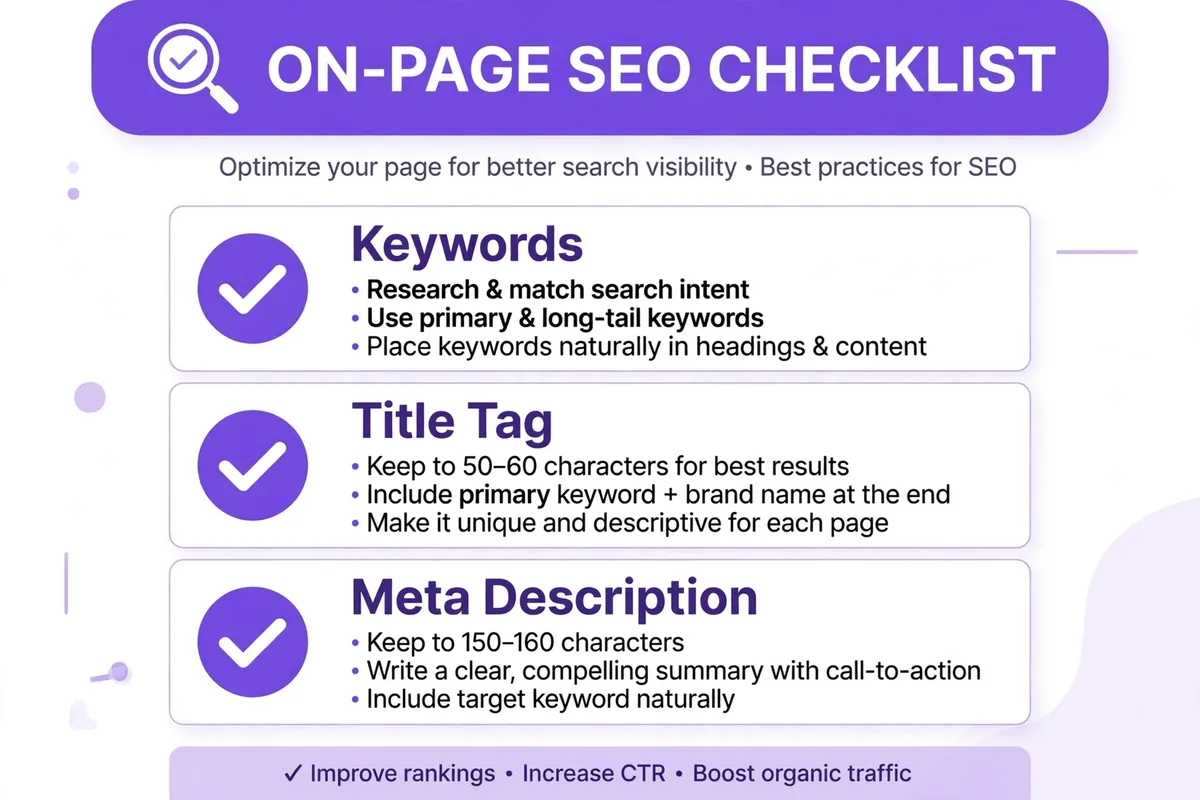
Use your main topic naturally in the title, the first paragraph, a subheading, and the page address, but do not repeat it in every sentence. Link to your other relevant pages with helpful anchor text, so visitors can find more detail and Google can see how your pages connect. If you are writing about the best SaaS tools for small businesses, for example, link to it from a page about tools or automation, with words that tell the reader what they will find, not with a bare web address. Add your business name, address, and phone number consistently across your site and your Google Business Profile, so local customers can find you and trust that the details are correct.
Step 10: Write Content People Want to Read, Then Measure What Works
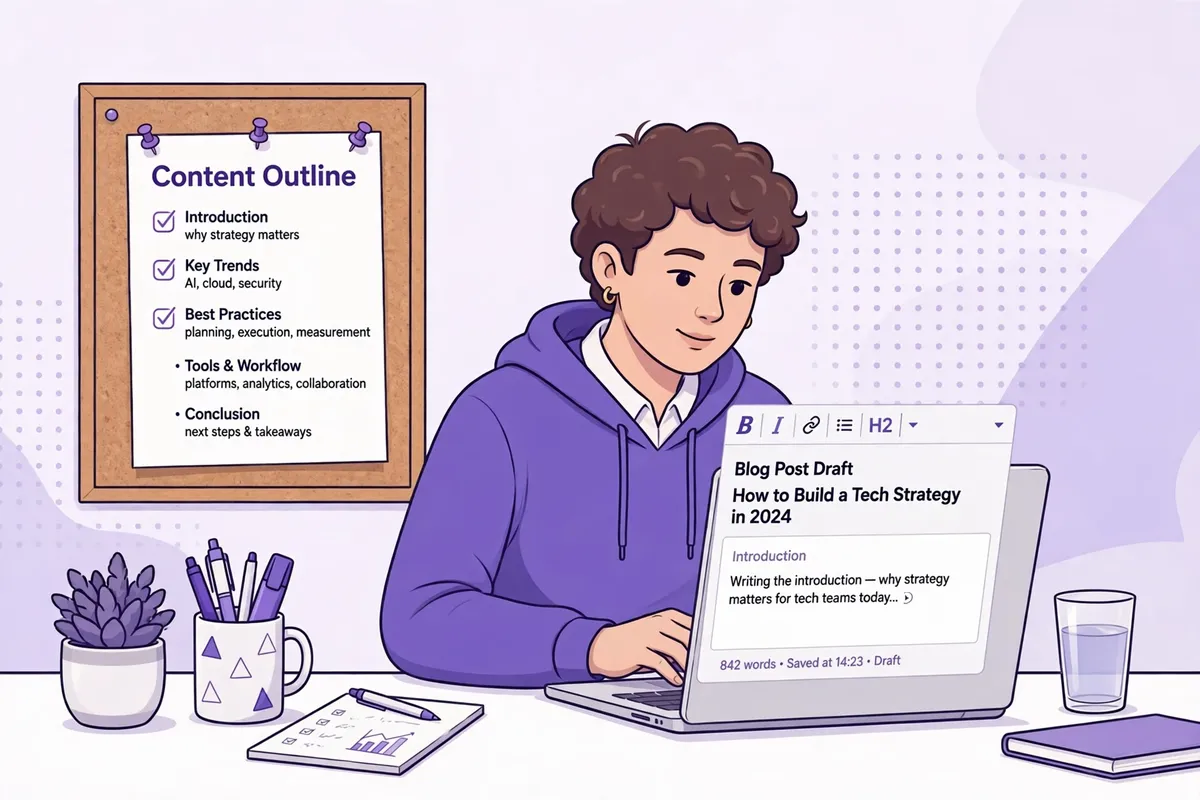
Content is where a fast website earns its rankings. Write about the problems your customers already have, answer them honestly, and show what you do differently. A short, specific article that solves one problem well is more useful than a long article that says little. Use examples from your own work, explain terms in plain language, and end with a clear next step. Fresh, helpful content also gives people a reason to come back and gives other sites a reason to link to you.
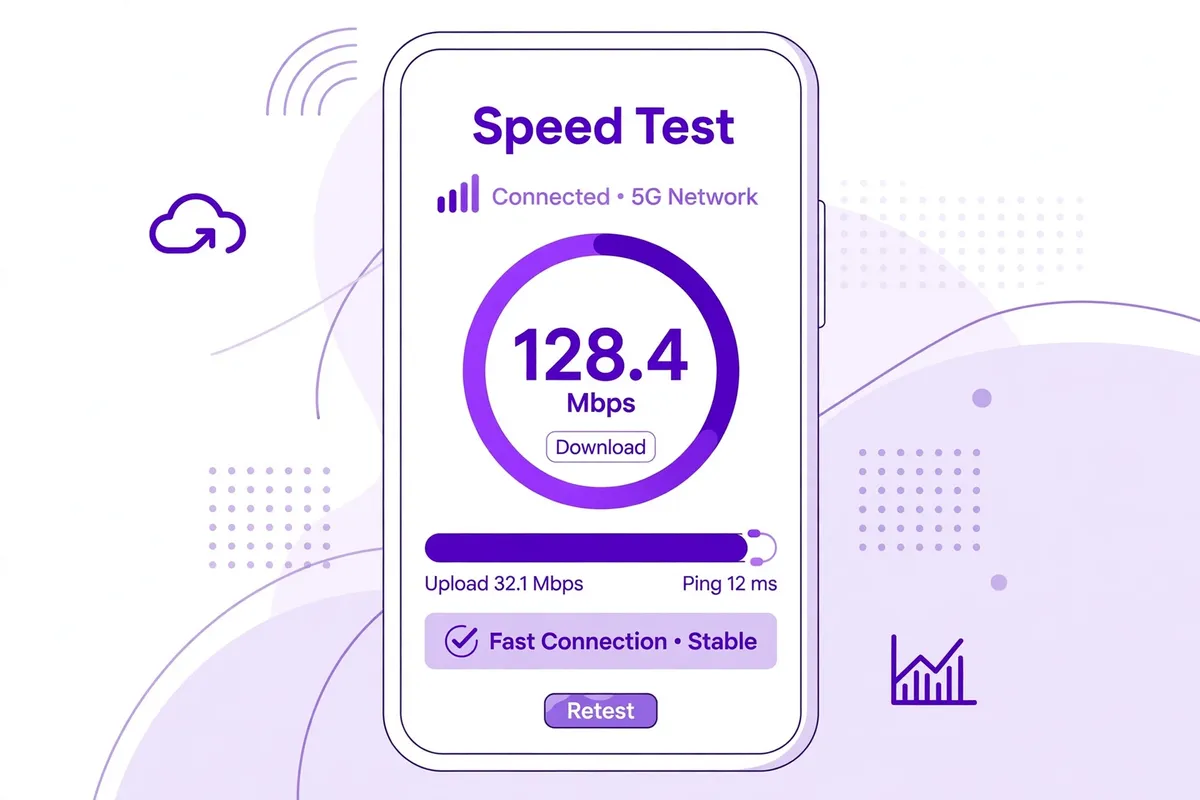
Make the mobile experience your first test, not an afterthought. Check every page on a real phone, tap every button with your thumb, and fill in your own contact form. If a button is too small, a pop-up covers the content, or a form is hard to complete, fix it before you worry about anything else. Most of your visitors will judge your business on that small screen.
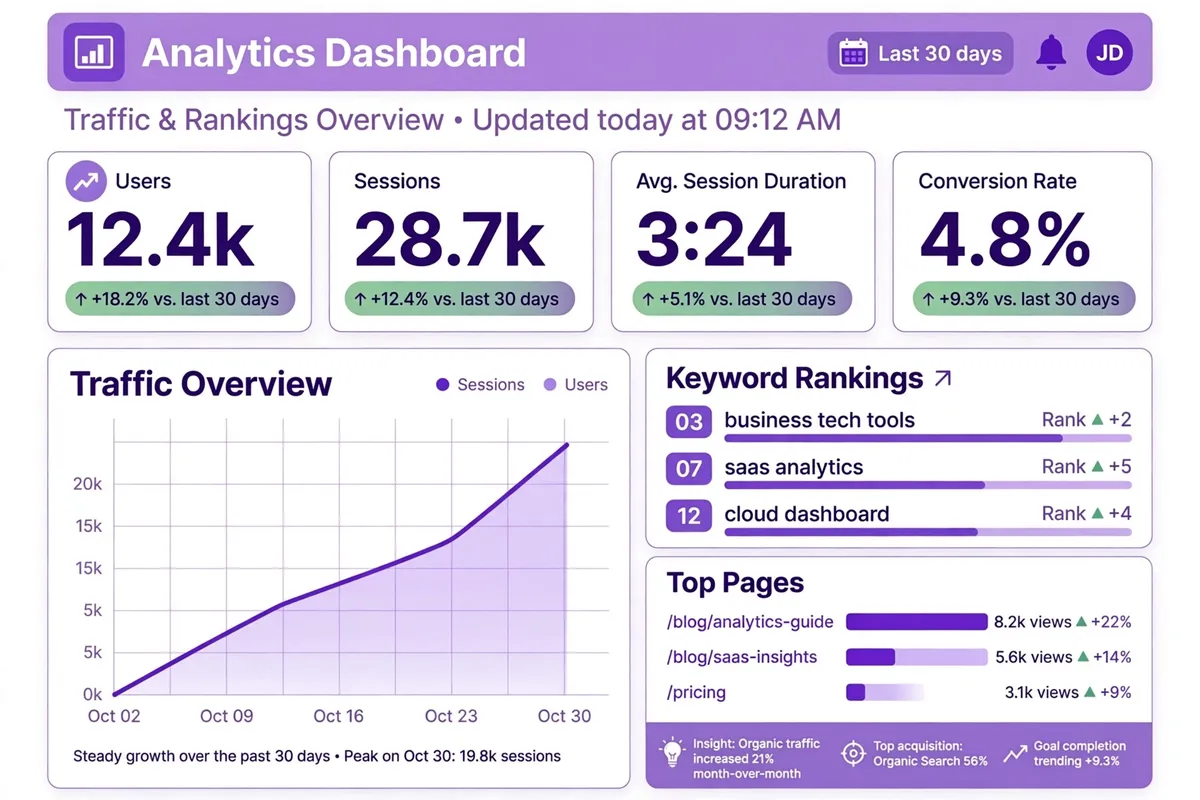
Finally, connect an analytics tool and Google Search Console, and look at them once a week, not once a day. Watch which pages bring visitors, which searches bring them, and which pages lead to enquiries. Fix the pages that get traffic but no enquiries, improve the pages that rank just below the first page, and keep doing more of what already works. If you want to stay in touch with visitors who are not ready to buy yet, learn how to grow your email list from scratch, so a helpful article can turn into a long-term relationship instead of a single visit.
Common Mistakes to Avoid
The most common mistake is adding too much: too many plugins, too many images, too many pop-ups, and too many pages with no clear purpose. The second is never testing on a phone. The third is writing for Google instead of for people, and filling pages with keywords that no customer would ever say. The fourth is launching and then forgetting the site, so plugins go out of date, backups stop, and content goes stale. A fast website is not a one-time project. It is a small, regular habit: test, fix one thing, publish something helpful, and repeat.
Conclusion: Start Small, Test Often, Keep Improving
You now know how to create a business website that loads fast and ranks on Google: plan one clear job for the site, choose a memorable domain and good hosting, build a clean WordPress site with a light theme, design pages that lead to a clear next step, optimise your images, set up caching, check Core Web Vitals, write helpful on-page SEO, publish useful content, and measure what happens. You do not have to do all of it today. Do the planning and the basics well, launch a simple, fast site, and improve one thing each week. If you also want to save time as you grow, read our guide on how to automate your small business with SaaS tools next. Speed, clarity, and helpful content compound over time, and a site built that way will keep working for your business long after launch day.
Once your fast website is bringing in enquiries, you will need a simple way to keep track of them. See our guide to the best CRM software for small businesses to choose a tool that helps you follow up on time and turn more enquiries into customers.