How to Automate Your Small Business with SaaS Tools in 2026
If you run a small business, you probably wear too many hats. One minute you are answering customers, the next you are chasing invoices, posting on social media, and trying to remember who you were supposed to follow up with. That is exactly where SaaS automation helps. Done well, it does not replace the human side of your business — it clears the repetitive work out of the way so you can focus on customers, sales, and growth. This guide shows you how to automate your small business, step by step.
The short answer: start with one painful, repetitive task, pick a tool that already connects to the apps you use, and automate that single workflow end to end. Then measure the time it saves before you add another. Small businesses that automate in small, deliberate steps usually get more value than those that buy five new tools at once and hope for the best.
How to Automate Your Small Business: What SaaS Automation Actually Means
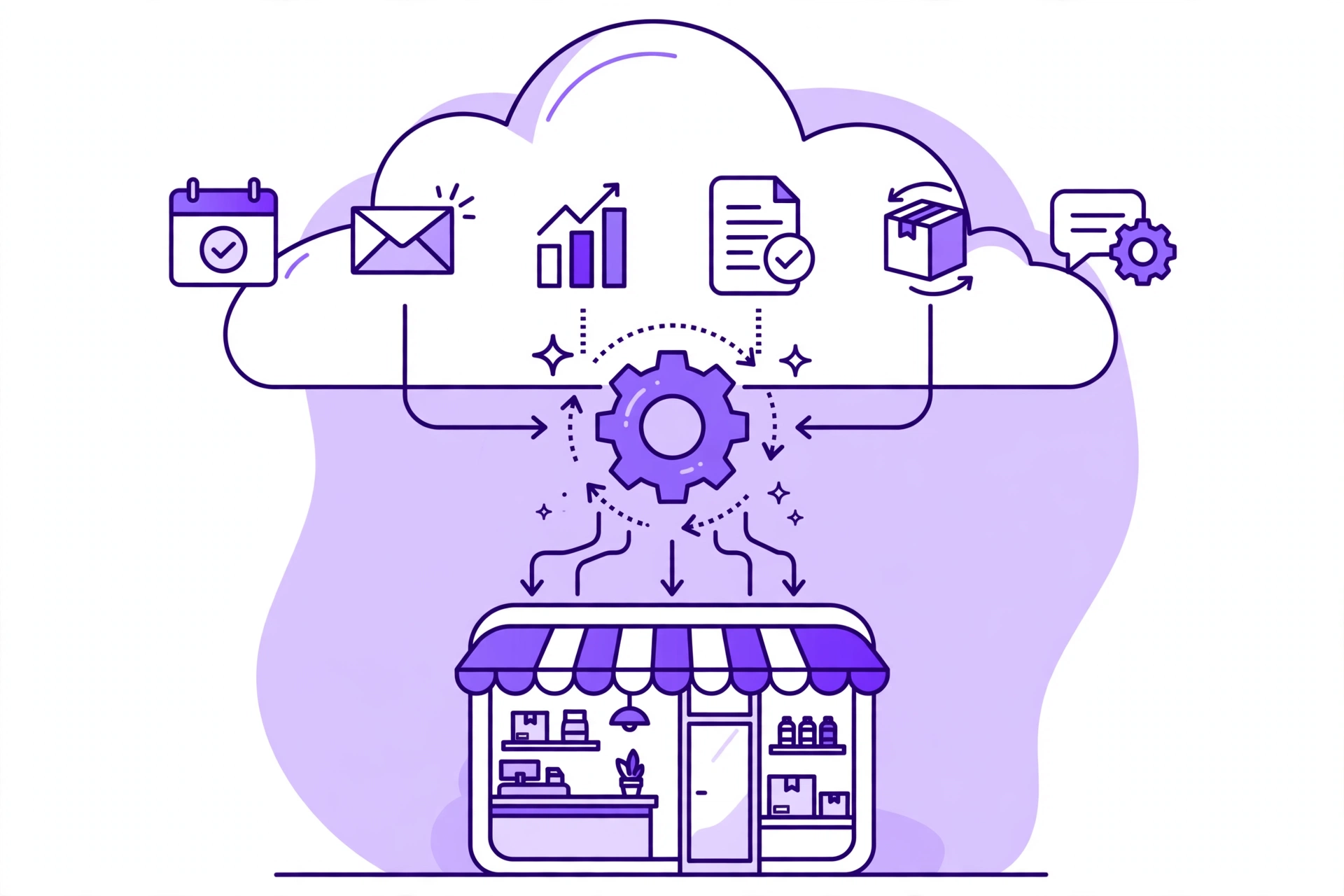
SaaS automation means letting a software tool do a task for you when a trigger happens, without you copying, pasting, or remembering it. A new order can create an invoice. A form submission can add a lead to your CRM and send a welcome email. A support ticket can be routed to the right person and tagged automatically.
It is not about turning your business into a robot. It is about removing the busywork between the moments that actually matter: the sale, the conversation, the delivery, and the follow-up.
Step 1: Find the Tasks Worth Automating First
Before you shop for tools, spend a week noticing where time leaks. Keep a simple list and note anything you do more than three times a week, anything that involves copying data from one app to another, and anything you keep forgetting.
- Lead follow-up: new enquiries sitting unanswered in an inbox or form.
- Invoicing and payments: manually creating, sending, and chasing invoices.
- Booking and scheduling: back-and-forth emails just to find a meeting time.
- Social and email content: posting the same update in several places by hand.
- Customer support: answering the same five questions over and over.
Pick the one task that costs the most time or loses the most sales when it slips. That is your first automation, not the tenth.

Step 2: Choose Tools That Talk to Each Other
The most common automation mistake is buying a clever tool that does not connect to anything else you use. Before you commit, check three things: does it integrate with your email, CRM, calendar, and payment tool; can a non-technical team member change the workflow; and is there a free plan or trial so you can test it on real work first?
If you are still comparing options, read How to choose the right SaaS tools for your small business and Best SaaS Tools for Small Businesses — both walk through features, pricing, and the questions worth asking before you pay.
A Practical Starter Stack
- CRM and sales: one place for leads, deals, and follow-ups, so nothing lives only in someone’s inbox.
- Email and marketing: automated welcome sequences, abandoned-cart reminders, and newsletters.
- Scheduling: a booking link that writes straight into your calendar and sends reminders.
- Invoicing: invoices generated from a sale, with automatic reminders for overdue payments.
- Team chat and tasks: work assigned and tracked in one place, instead of across email threads.
Step 3: Build Your First Automation, One Workflow at a Time
Here is a concrete example. A small accounting firm was losing enquiries because website forms went to a shared inbox and nobody owned them. Their first automation was simple: every form submission created a CRM contact, assigned it to the next available team member, and sent the enquirer an immediate reply saying when they would hear back. Response time fell from days to minutes, and no lead was left unassigned.
Build yours the same way: trigger, action, owner, and a check that it worked. Test it with a real example before you switch it on for customers, and give one person responsibility for watching it during the first week.
Five Automations That Pay Off Fast
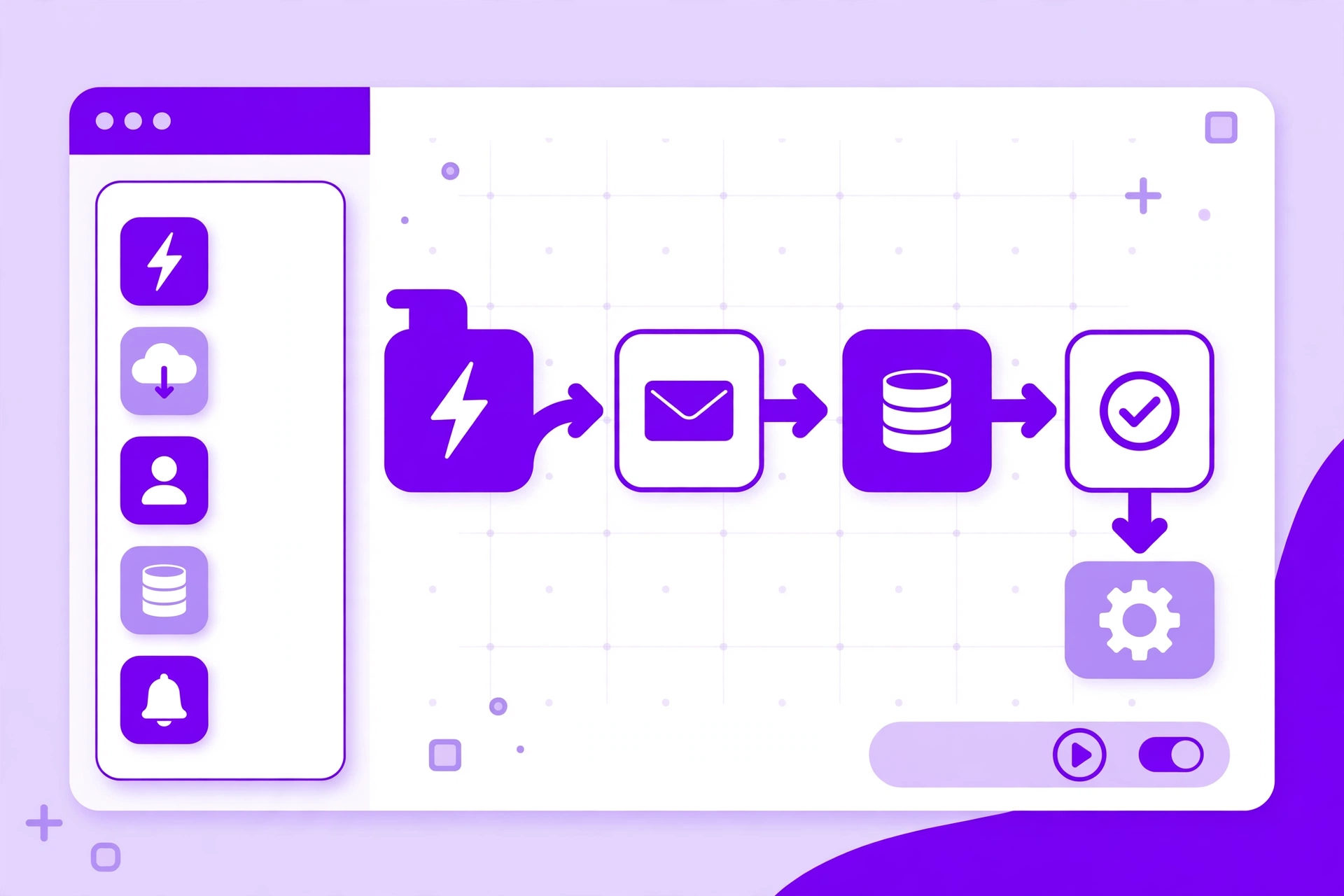
- New lead, instant response: form to CRM to welcome email, with a task for a human follow-up.
- Missed-call and booking follow-up: a reminder sequence so a missed booking does not become a lost sale.
- Invoice reminders: polite, timed reminders before and after a due date.
- Review requests: an automatic request after delivery or a completed job, while the experience is fresh.
- Internal handover: when a deal closes, tasks are created for delivery, billing, and onboarding without anyone retyping the details.
Step 4: Keep the Human Touch (and Avoid Common Pitfalls)
Automation works best when customers still feel looked after. Keep automated messages short, specific, and easy to reply to, and always offer a clear route to a real person. Review your workflows once a month: a message that made sense in January can sound tone-deaf by June, and a workflow that no longer matches your process can quietly create duplicate work.
Two pitfalls to avoid: automating a broken process (you will just make mistakes faster) and automating everything at once (you will not know which change helped). Fix the process first, automate second, and keep a note of what each workflow is supposed to do and who owns it.
For broader ideas on free tools to try first, see Free AI Tools for Small Business. Many teams start on a free plan, prove the time saving, and only then upgrade.

Conclusion: Start Small, Then Scale What Works
Learning how to automate your small business with SaaS tools in 2026 does not require a big budget or a technical team. It requires one clear priority, one tool that connects well, and one workflow you actually test. Save the hours you win, reinvest them in customers, and only then add the next automation. That steady pace is what turns software from another subscription into a real advantage.
Frequently Asked Questions
How much does SaaS automation cost for a small business?
Many teams start free or close to it, using free plans and trials for email, scheduling, and task tools. The honest cost is the time to set a workflow up properly and review it monthly — a tool you never check can quietly keep sending the wrong message.
Which business task should I automate first?
The task that is repetitive, time-consuming, and costly when it slips — most often lead follow-up, invoicing, or scheduling. If a task is done differently every time, fix the process first, then automate the stable version.
Do I need coding skills to automate with SaaS tools?
No. Most modern SaaS tools offer visual workflow builders, templates, and native integrations. If a workflow needs custom code, that is usually a sign to simplify it or choose a tool with a ready-made integration instead.
Will automation make my business feel impersonal?
Only if it is done badly. Use automation for reminders, routing, and follow-ups, and keep real conversations human. A quick automated acknowledgement followed by a genuine personal reply is usually better than silence.
A Simple 30-Day Automation Plan

If you want a timetable you can actually follow, try this one. In week one, audit your work and pick a single task, as described in Step 1, and write down how long it takes today. In week two, set up that one workflow only, using a free plan or trial where possible, and test it with a colleague before any customer sees it. In week three, run it live, but check it daily and keep a note of anything that goes wrong. In week four, compare the new time against your week-one baseline, fix the rough edges, and only then choose the next workflow.
A small bakery, for example, might start with online orders: an order form that creates a production list, sends the customer a confirmation, and adds a delivery task. A freelance designer might start with proposals: a signed proposal that creates a project, an invoice, and a welcome email. The tool changes, the pattern does not. One workflow, one owner, one month to prove it.
How to Measure Whether Automation Is Working

Automation that cannot be measured is hard to defend when the subscription renews. Track four simple numbers for each workflow: hours saved per week, response time for customers, errors or missed items, and any change in sales or completed jobs. A spreadsheet is enough. If a workflow saves five hours a week, that is roughly 20 hours a month — time you can put into sales, service, or simply finishing earlier.
Also track the cost of keeping it running. Include the subscription, the time you spend reviewing it, and any tool you still pay for but no longer use. If a workflow saves little time and creates new manual checks, simplify it or switch it off. Integration tools such as Zapier can be useful here because they connect many apps without custom code, but they are only worth it when the workflow they support is already clear and stable.
Final Word
Start with one task, prove the saving in 30 days, and build from there. That is how small businesses get real value from SaaS automation in 2026 — not by buying more software, but by removing the right work, one workflow at a time.