How to Use Google Search Console to Grow Your Website Traffic
If you want more people to find your website on Google, you need to know how to use Google Search Console. It is the free tool Google gives website owners to see how their site appears in Google Search, which pages Google has indexed, and which searches bring people to the site. In this guide, you will learn how to use Google Search Console step by step, from setting it up and verifying your site to reading its reports, fixing the problems it finds, and turning its data into more traffic.
Short answer: To use Google Search Console to grow your website traffic, verify your website as a property, submit your sitemap, and check the Performance report regularly. Look for search queries where your pages rank just below the first page, improve those pages and their titles, fix the pages Google has not indexed, and keep checking the report after each change. That simple loop — find, fix, improve, and measure — is how most small websites grow steadily on Google, without paying for ads.
Many website owners publish good pages and then wait, hoping Google will notice them. Sometimes it does, and sometimes it does not. Search Console removes the guessing. It tells you whether Google can find a page at all, what Google thinks the page is about, how often the page appears in search results, and how often people click it. When traffic falls, it also tells you where to look first. That is why learning how to use Google Search Console is one of the most useful skills for a small business owner, a blogger, or anyone who manages a website.
This guide is written for beginners, but it is practical enough to use every week. You do not need a developer, a paid SEO tool, or a large budget to follow it. You only need access to your website and a Google account. We will keep the language plain, explain every report in everyday terms, and show you the exact checks that lead to more clicks. Where Google gives help of its own, we link to it, so you can check the official guidance at any time.
What Is Google Search Console?
Google Search Console is a free service from Google that helps you monitor, maintain, and troubleshoot your website in Google Search results. It does not bring traffic by itself, and it does not change your rankings directly. Instead, it shows you how Google sees your site, so you can fix problems and improve the pages that matter most. Think of it as a health check and a feedback form from Google, in one place.
Search Console is different from Google Analytics. Analytics tells you what people do after they arrive on your website — which pages they visit, how long they stay, and where they come from. Search Console tells you what happens before they arrive — which searches showed your pages, how often your pages appeared, and how often people clicked. The two tools work best together, and you can use them side by side to understand the full journey from a search to a visit. If you have not set up Analytics yet, read our guide How to Set Up Google Analytics 4 for Your Website in 2026 after you finish setting up Search Console.
What Google Search Console can do for you
- Show your search performance: See the queries, pages, countries, and devices that bring clicks and impressions, plus your average click-through rate and average position.
- Confirm that Google can find your pages: See which pages are indexed, which are not, and why Google left some pages out.
- Help Google find new pages faster: Submit a sitemap and ask Google to check a single page after you publish or update it.
- Alert you to problems: Receive messages about indexing problems, pages that are hard to use on a phone, and other issues Google finds.
- Show who links to you: See the sites that link to your pages most often and the pages on your site that receive the most links.
- Help you improve pages that almost rank: Find the queries where a page sits just outside the top results, so you know where a small improvement can make a real difference.
Search Console is for every kind of website: a small business site, a blog, an online shop, a portfolio, or a local service site. If your customers find you through Google, the tool is worth checking at least once a week. It is especially useful after you publish a new page, change a page, move to a new website address, or notice a drop in traffic. For a fuller picture of the basics, the Google Search Console Help centre explains each feature in Google’s own words.
Who should use it, and how often?
If you write content, manage a website, or pay someone else to do it, you should have access to Search Console. You do not need to open it every day. A weekly check is enough for most small sites, with a quick look after every important change. During that check, look at Performance for the last 28 days, look at the pages that are not indexed, and note any new messages from Google. A short, regular routine beats a long session once every few months, because search problems are much easier to fix when they are fresh.
One important point to remember: Search Console shows data only from the day you verify your property. It does not show the past. That is another reason to set it up now, even if your site is new and small. The sooner you verify it, the sooner the data starts to build, and the sooner you can compare one month with the next. You can learn more about the wider craft in our guide How to Improve Your Website SEO Without an Agency, which covers the habits that support the work in this guide.
How to Set Up Google Search Console
Setting up Google Search Console takes only a few minutes once you know which choices to make. The steps are: create a property for your website, prove that you own it, and then submit your sitemap. After that, Google starts collecting data, and you can return to check it while the reports fill in over the next few days.
Step 1: Add your website as a property
Sign in to Google Search Console with the Google account you use for your website, then choose to add a property. A property is simply the website, or part of a website, that you want to track. Google offers two kinds of property, and the choice matters, so pick carefully before you verify.
Domain property or URL-prefix property?
- Domain property: You enter only your domain name, for example your main domain without www and without a page path. A Domain property covers the whole domain, including every subdomain and both the secure and non-secure versions. It is the best choice for most websites, because it gives you the complete picture in one place.
- URL-prefix property: You enter the full address of your site, including the protocol and any subdomain, for example the www version of your site. A URL-prefix property covers only the addresses that start with exactly what you entered. It is useful when you manage only one section of a larger site, or when you only want to track one version of a site, but it will not include the other versions.
If you own the whole website, choose a Domain property. If you are setting up Search Console for a site you manage on a subdomain, or for a single folder, a URL-prefix property may fit better. You can add more than one property for the same website, so you are not locked in forever, but starting with the Domain property keeps your reports in one place.
Step 2: Verify that you own the website
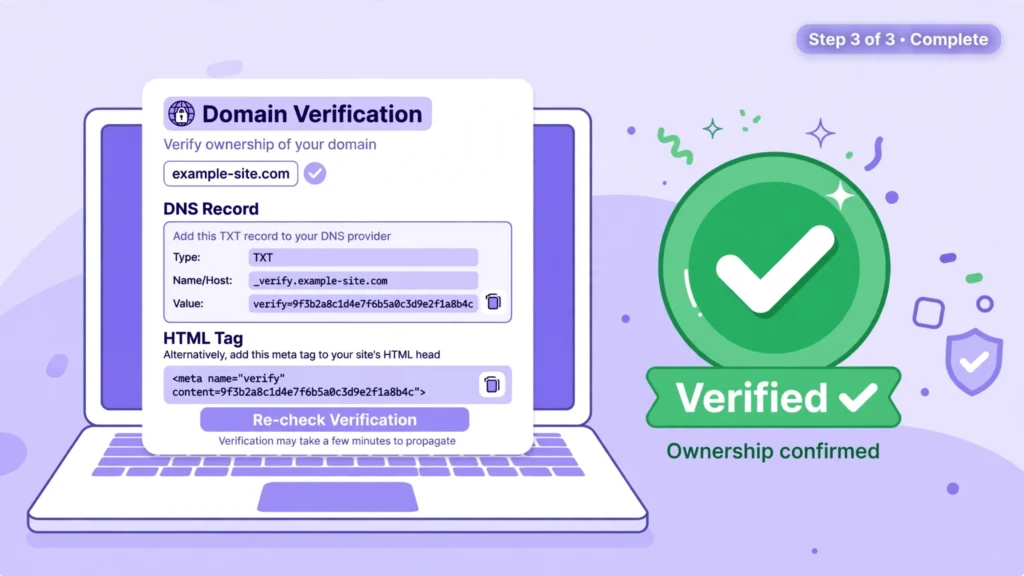
Verification proves to Google that you are allowed to see the search data for the site. Google will not show you the data until you complete it. The method you use depends on your property type and on what you can change on your website. Choose the method that is easiest for you, and keep the verification in place after you finish. If you remove it, you can lose access to the property.
Verification by DNS record
For a Domain property, you must use a DNS record. Google gives you a short text record, called a TXT record, to add to your domain in the place where you manage your domain name, usually your domain registrar or your hosting account. Copy the record exactly, save it, and then ask Google to check it. DNS changes can take a little while to spread, so if verification does not work at once, wait a short time and try again. This method is the most complete, because it covers the whole domain.
Verification by HTML tag
For a URL-prefix property, one of the simplest methods is an HTML tag. Google gives you a small piece of code, a meta tag, to place in the head section of your home page. In WordPress, you can add it through your SEO plugin or your theme settings, rather than editing files directly. After you add the tag and save the page, return to Search Console and ask Google to verify it. Do not remove the tag afterwards.
Verification by Google Analytics
If you already use Google Analytics on your website, and you use the same Google account for both tools, you may be able to verify with Google Analytics. Google checks for the Analytics tracking code on your home page. This works only for a URL-prefix property, and only when the tracking code is on your home page and you have the right permission in Analytics. If you have not set up Analytics yet, our guide How to Set Up Google Analytics 4 for Your Website in 2026 walks through that setup first.
Verification by Google Tag Manager
Google Tag Manager offers a similar path. If Tag Manager is already installed on your website and you use the same Google account, Google can check for the Tag Manager code on your home page. Again, this is for a URL-prefix property, and you need the right permission in Tag Manager. For most small sites, the HTML tag or the DNS record is simpler, but if Tag Manager is already part of your setup, this method saves a separate step.
Google also offers verification by uploading an HTML file to your website. That method works in the same way: Google gives you a file, you place it at the root of your site, and Google checks that it can find it. Whichever method you pick, the rule is the same: use the account that owns the website, follow the instructions exactly, and leave the verification in place.
Step 3: Submit your sitemap
A sitemap is a file that lists the pages on your website that you want Google to find. Most WordPress sites, and most SEO plugins, create one for you automatically. In Search Console, open Sitemaps from the left menu, enter the address of your sitemap, and submit it. The address often ends in sitemap.xml, but check your own site for the exact address your plugin gives you. Submitting a sitemap does not guarantee that Google will index every page, but it helps Google discover new and updated pages more quickly.
After you submit the sitemap, give Google time. New websites may show very little data for the first few days, and that is normal. Google needs to visit your pages, decide which ones to index, and gather enough searches to show in the reports. During that time, check that the sitemap has no errors, and keep publishing helpful pages. You should also check that every important page can be reached by a link from another page on your site, because Google follows links to find new content.
Step 4: Set your preferences and check your messages
Before you close Search Console, check the messages area and make sure your email notifications are on. Google sends messages about serious problems, such as a page that cannot be indexed or a security problem, and those messages are most useful when you see them early. If more than one person works on your website, you can also add them as users or owners from the settings, so the right person sees the alerts. Keep the access limited to people who need it, and review it when someone leaves the team.
A Walkthrough of the Key Google Search Console Reports
Once your property is verified, the left menu in Search Console is your map. You do not need to learn every report at once. Start with the six reports below, and learn what each one is for, what to look at first, and what action it leads to. Together, they cover almost everything a small website needs.
1. Performance: what people search for, and what they
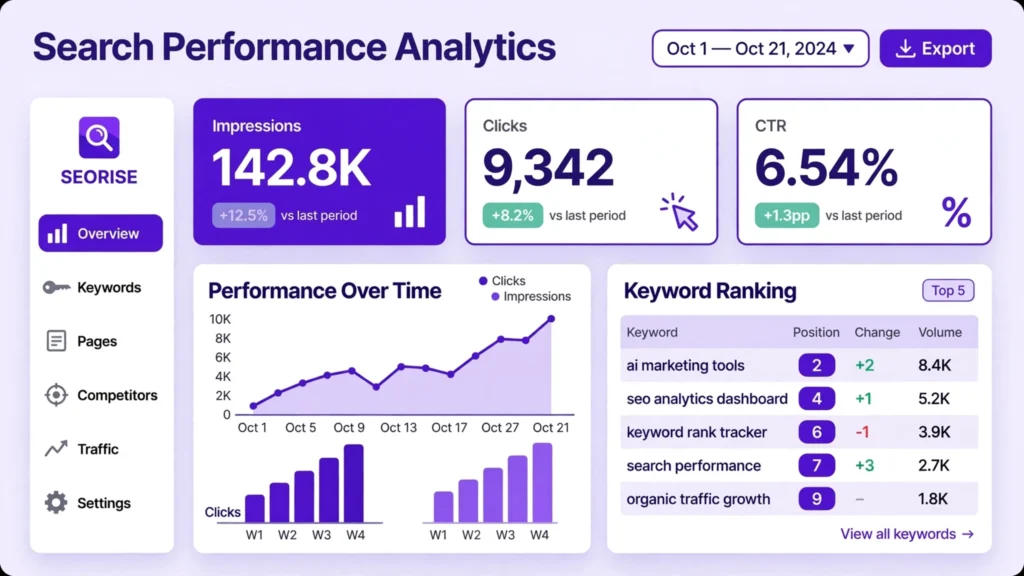
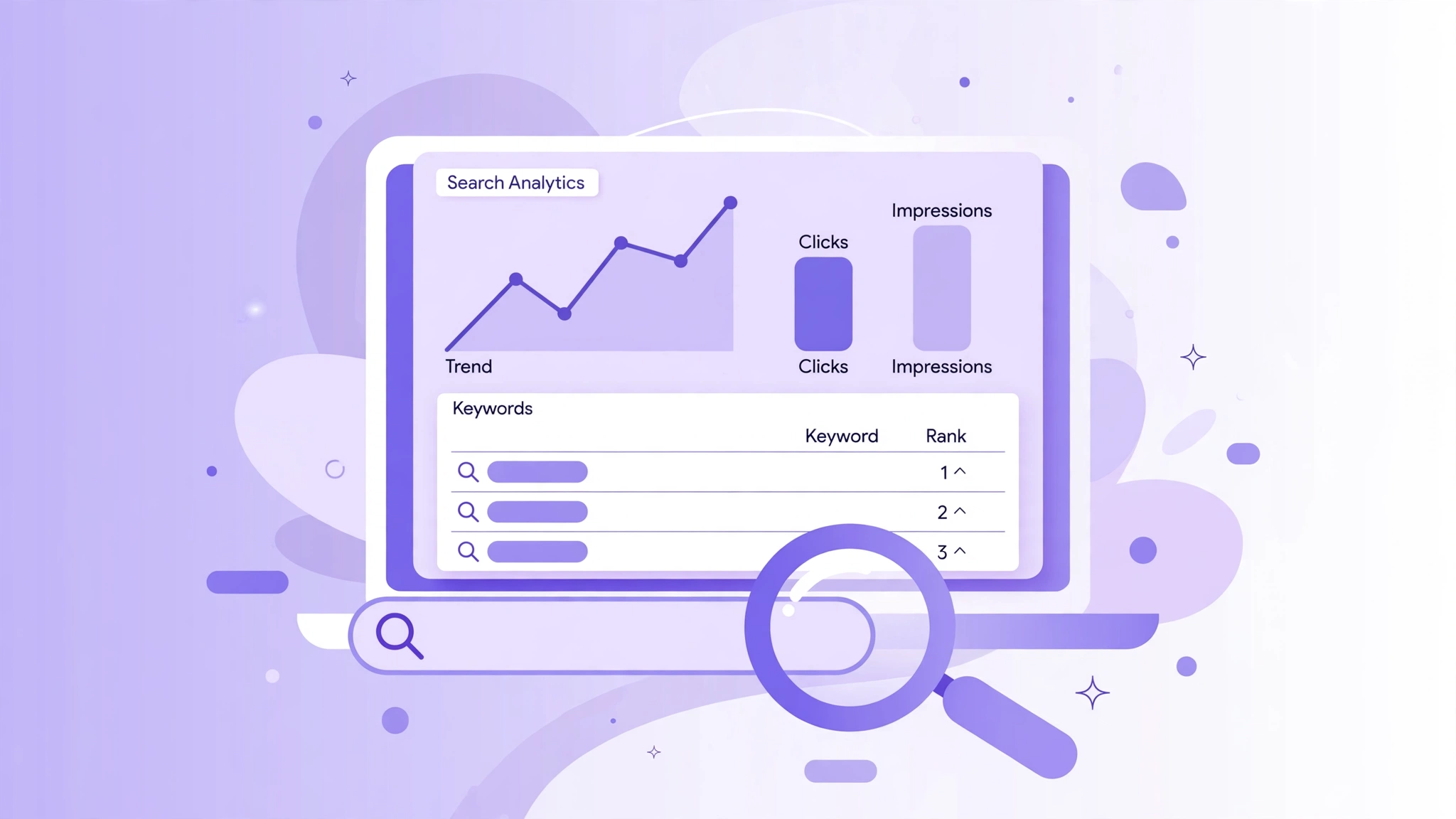
The Performance report is the report you will open most often. It shows how your site performs in Google Search over a period you choose. At the top you can switch on four measures: total clicks, total impressions, average click-through rate (CTR), and average position. Clicks are visits from Google Search. Impressions are the times a page from your site appeared in the search results, even if nobody clicked. CTR is the share of impressions that led to a click. Average position is where your pages appeared, on average, in the results.
Below the chart, you can change what the table shows: Queries, Pages, Countries, Devices, Search appearance, and Dates. Queries show the exact words people typed. Pages show which of your pages appeared. Countries and Devices show where your visitors are and whether they use a phone or a computer. Search appearance shows whether a result appeared with extra features, such as a rich result. Use the date filter to compare one period with an earlier one, for example the last 28 days against the previous 28 days, so you can see whether a change helped or hurt.
When you read this report, look for three things. First, find the queries that already bring clicks, and make sure the pages behind them stay fresh and useful. Second, find the pages with many impressions but few clicks, because a better title or a clearer description may earn more of those clicks. Third, find the queries where you appear near the top but not quite on the first page, and improve those pages first, as we explain later in this guide.
2. URL Inspection: check one page at a time
URL Inspection is the tool for a single page. Paste a page address into the search box at the top of Search Console, and Google will tell you whether that page is in its index, when Google last visited it, and whether Google could load it without problems. If the page is not indexed, the tool explains the reason it gives, such as a page that Google found but chose not to index, a page blocked by your site, or a page Google has not seen yet.
The tool also lets you test a live page. That check looks at the page as Google sees it right now, which is useful after you fix a problem. If the page looks ready, you can ask Google to index it. That request does not guarantee that Google will index the page, or that it will do so quickly, but it puts the page in the queue to be checked. Use this tool after you publish a new page, after you fix an indexing problem, and whenever a page you expect to rank does not appear in search at all.
3. Indexing and Pages: which pages Google keeps, and which it leaves out
The Pages report, under Indexing, gives you the site-wide view. It separates your pages into groups: pages that are indexed, and pages that are not indexed, with a reason for each group. You can click a reason to see the pages affected, and then click a single page to inspect it in detail. This report is where you spot wasted pages, such as old tag pages or duplicate pages that Google has chosen not to index, and important pages that are missing for a simple reason you can fix.
Not every page that Google leaves out is a problem. Some pages should not be indexed, such as a thank-you page after a form, an admin page, or a duplicate version of a page that already exists. The report is a problem only when an important page is missing, or when the number of missing pages jumps suddenly. When that happens, start with the reasons Google lists, fix the cause on your site, and then ask Google to check the page again. The Google Search Console Help centre describes each indexing reason and the steps Google suggests for it.
4. Sitemaps: help Google discover your pages
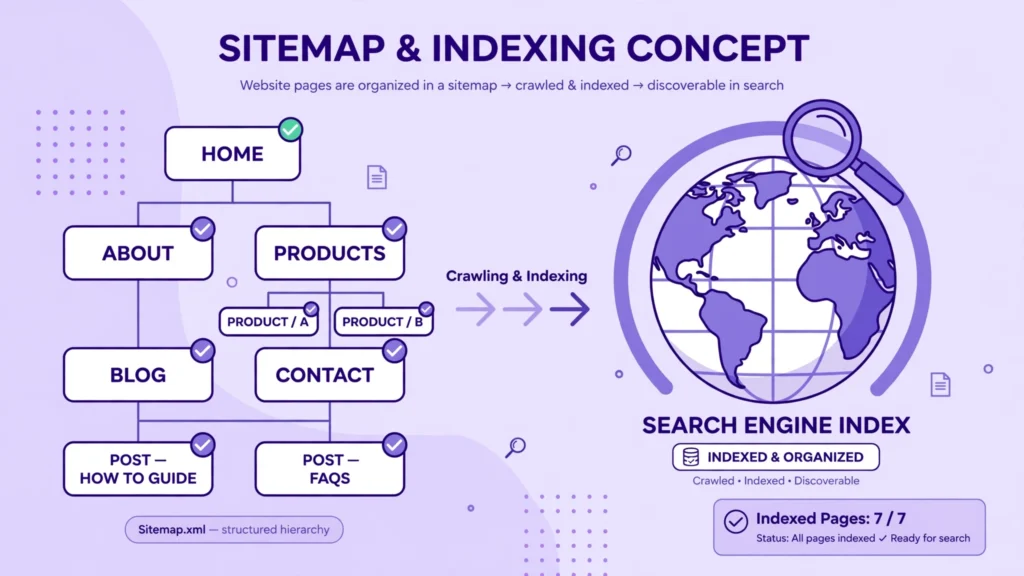
The Sitemaps report lists the sitemaps you have submitted and the state of each one. A sitemap that Google reads without an error is a good sign. If Google reports an error, it usually means the file cannot be found, cannot be read, or lists pages that Google cannot reach. Fix the file, or ask the plugin that creates it to make a new one, and then submit it again. You can also see how many of the addresses in a sitemap Google has discovered, which tells you whether the sitemap is doing its job.
Keep your sitemap clean. It should list the pages you want people to find, and it should not list pages that no longer exist, pages that redirect somewhere else, or pages you have asked Google not to index. A short, accurate sitemap is more useful than a long one full of pages that do not matter. If you run a local business, the same habit of keeping your public listings accurate applies elsewhere too, as our guide How to Improve Your Google Business Profile Ranking explains for your business profile.
5. Experience and Core Web Vitals: how your pages feel to visitors
The Experience section looks at how real visitors experience your pages. Its Core Web Vitals report groups your pages by whether they give a good, middling, or poor experience, on phones and on computers separately. Core Web Vitals are a small set of measures that focus on how quickly the main content appears, how quickly a page responds when a visitor taps or clicks, and how much the layout moves around while the page loads. Those three ideas — loading speed, responsiveness, and visual stability — are what visitors notice most.
When you open the report, start with the mobile view, because most searches now happen on a phone. Click a group of pages with problems, and Google will show the kind of problem it found on those pages. Fix the cause on your site, for example a large image that slows a page down, a script that delays the page, or an element that shifts the layout, and then ask Google to check the fix. The report uses data from real visitors over time, so it will not change the day you fix a page. Wait, check again after a few weeks, and see whether the group of pages moves to a better rating.
6. Links: who links to you, and where your own links point
The Links report shows the links that point to your site from other websites, the pages on your site that receive the most links, and the text other sites use when they link to you. It also shows your internal links, the links between pages on your own site. This report helps in two ways. First, it tells you which pages other sites already trust, so you know which pages are worth keeping strong. Second, it shows you where your internal links are thin, so you can add a link from a strong page to a new or important page that needs more attention.
You do not need a huge number of links to benefit from this report. For a small site, even a few links from relevant sites are a good sign. What matters is that the links are real, from sites that fit your topic, and that your own internal links point visitors and Google towards the pages that answer the questions your customers ask most. Our roundup of the Best SaaS Tools for Small Businesses can help you find tools that support that wider work, from content to customer support.
How to Fix Common Issues in Google Search Console
Search Console is most useful when something is wrong, because it does not just tell you that there is a problem — it tells you which pages are affected and what Google saw. Work through problems in order of importance: fix the pages that matter most first, then move to the rest. After each fix, test the page again and ask Google to check it.
Pages are not indexed
When an important page is not indexed, start in the Pages report and then inspect the page itself. Check the simple causes first: is the page live, does it return the right status, and can Google reach it without a login? Then check whether the page is blocked by a setting on your site, whether it is listed in your sitemap when it should be, and whether another page on your site links to it. Thin pages can also be left out — a page with very little original content, or a page that repeats another page almost word for word, may be seen as having little value to index.
To fix it, make the page worth indexing. Give it a clear purpose, answer the question it is meant to answer in full, add useful detail that visitors cannot find elsewhere, and link to it from a related page. Remove or fix the block if one was stopping Google, and make sure the page is in your sitemap. Then use URL Inspection to test the live page and ask Google to index it. Give Google time to return, and check the report again after a few days.
Crawl errors and pages Google cannot reach
When Google tries to visit a page and cannot load it, that is a crawl problem. The cause may be a page that no longer exists, a link that points to the wrong address, a server that is slow or down, or a page that redirects in a loop. Start with the pages that used to bring traffic, because those are the ones that hurt most when they break. Fix broken links, update old links that point to removed pages, and make sure important pages do not redirect more than once. If a page has moved for good, set up a proper redirect to the new address, and update the links that point to the old one.
Do not try to fix every error at once. Some errors belong to pages you no longer need, such as an old page that you have removed on purpose. Those can be left alone, and Google will stop trying them over time. Focus on the errors that affect pages you want people to find, and on any error that appears on many pages at once, because that usually points to a site-wide problem, such as a server fault or a wrong setting.
Mobile usability problems
Most people now find websites on a phone, so a page that is hard to use on a small screen is a real problem, even if it looks fine on a computer. Common mobile problems are text that is too small to read, buttons and links that sit too close together to tap, content that is wider than the screen, and elements that overlap. Check the page on a real phone, not only in a preview, and tap through it as a visitor would.
Fix the layout first: make the text large enough to read without zooming, give buttons and links enough space, and make sure nothing forces the page wider than the screen. Then check the page speed on a phone, because a slow page is also hard to use. Compress large images, remove anything that delays the main content, and test again on a phone. When the page works well on a phone, it usually works well everywhere else too.
How to Use Google Search Console to Grow Traffic
Fixing problems protects the traffic you already have. Growing traffic comes from the next step: using the Performance report to find the pages and queries that are closest to doing better, and then improving them. This is slower than publishing a new page every day, but it is more reliable, because you are working on pages Google already knows and already shows to people.
Find the keywords you almost rank for
Open the Performance report, choose Queries, and sort by impressions. Then look for queries where your average position is just beyond the first page of results — roughly the second page, where people rarely look. Those are the keywords you almost rank for. For each one, open the page that appears for that query and ask: does this page answer the query fully, does it answer it better than the pages above it, and does it cover the details a searcher would expect?
If the answer is no, improve the page. Add the missing detail, answer the follow-up questions a reader would ask next, add a clear example, and make the page easier to scan with headings and short paragraphs. Add a link to the page from a related page on your site, using words that describe what the page is about. Then wait and watch the position for that query over the next few weeks. Small, focused improvements on pages that are already close often bring more traffic than a new page that starts from nothing. The Google SEO Starter Guide explains the same idea in Google’s own guidance: create useful, reliable, people-first content, and make it easy for search engines to understand.
Improve your click-through rate
Click-through rate, or CTR, is the share of people who see your page in the search results and click it. A page can appear often and still bring little traffic if its title and description do not persuade people to click. In the Performance report, sort your pages by impressions and look for pages with many impressions but a low CTR. Those pages are your best candidates for a better title and description.
Write a title that says exactly what the page offers, in the words a searcher would use, and keep it honest — do not promise something the page does not deliver. Then write a description that adds a reason to click: what the reader will learn, what problem the page solves, or what makes the page different. Use the main topic early in the title, keep the title short enough to show in the results, and do not stuff it with extra words. After you change a title or description, give Google time to show the new version, then compare the CTR for the same period before and after the change.
Find and improve your top pages
In the Performance report, switch to Pages and sort by clicks. Your top pages are the pages that already earn the most visits from Google. Those pages deserve your best work, because a small improvement there can bring more new visitors than a large effort on a page nobody sees. Keep them up to date, check that their facts and examples are still current, add new detail when the topic has moved on, and fix any broken links on the page.
Also look at the queries that bring people to each top page. If people arrive for a question the page only answers in passing, expand that part of the page, or add a short section that answers it directly. If people arrive for a topic that belongs on a separate page, write that page and link it from the top page. That way, one strong page helps the next one grow, and your site becomes the place people return to for that topic. For a wider plan, read How to Improve Your Website SEO Without an Agency, which shows how this page-by-page work fits into a full SEO routine.
A simple weekly routine that grows traffic
- Open Performance, compare the last 28 days with the previous 28 days, and note which pages gained and which lost clicks.
- Pick one page that almost ranks and improve it, instead of starting five new pages.
- Pick one page with many impressions and a low CTR, and rewrite its title and description.
- Check the Pages report for any important page that has dropped out of the index, and fix it.
- Check for new messages from Google, and act on any problem that affects an important page.
- After you publish or update a page, check it with URL Inspection and ask Google to index it.
Common Mistakes to Avoid When Using Google Search Console
Search Console gives you good data, but it is easy to read it the wrong way. Avoid these mistakes, and your decisions will be better.
- Checking it once and never returning: Search Console is not a one-time setup. Data changes every day, new problems appear, and a page that ranked well last month can slip without a warning unless you look.
- Panicking over a small daily change: Clicks go up and down with the day of the week, the season, and what people search for. Compare 28 days with the previous 28 days before you decide that something is wrong.
- Chasing average position alone: Average position mixes many queries together, so a small change may not mean what you think. Look at the position for a single query and a single page before you act.
- Trying to index every page: Not every page needs to be in Google. A page that repeats another page, a page with almost no content, or a page that is only for your own team should stay out of the index.
- Asking Google to index a page before it is ready: If you ask Google to check a thin or broken page, Google may leave it out, and you will have to wait before it checks again. Fix the page first, then ask.
- Ignoring the mobile view: A page can look perfect on a computer and still be hard to use on a phone. Always check the mobile view first, because that is how most of your visitors will see it.
- Changing many things at once: If you change a title, rewrite a page, and change its links on the same day, you will not know which change helped. Change one thing, wait, and measure it.
- Copying numbers from a chart into a report without context: Search Console shows how your own site performs in Google Search. It does not show your competitors, your sales, or your own site’s data, and it should not be quoted as if it does.
Frequently Asked Questions About Google Search Console
Is Google Search Console free?
Yes. Google Search Console is a free service from Google. You only need a Google account and a website you can verify. There is no paid version that gives you more data in the same tool.
How long does it take for Google Search Console to show data?
After you verify your property, data starts to appear, but it can take a few days for the reports to fill in. New pages may take longer to appear, because Google needs to visit and index them first. Check again after a week, rather than expecting a full report on the first day.
How do I know if my website is indexed by Google?
Paste the page address into URL Inspection in Search Console. It will tell you whether the page is in Google’s index and when Google last visited it. You can also look at the Pages report, under Indexing, to see all of your indexed and non-indexed pages together.
Why is my page not showing up on Google?
The page may not be indexed yet, it may be blocked by a setting on your site, it may be too thin or too similar to another page, or Google may not have found it because no other page links to it. Use URL Inspection to see the reason Google gives, fix that cause on your site, and then ask Google to index the page again.
How do I submit a sitemap to Google Search Console?
Open Sitemaps in Search Console, enter the address of your sitemap, and submit it. Most WordPress sites and SEO plugins create a sitemap for you. If Google reports an error, check that the sitemap address is correct and that the file lists pages that exist and can be reached.
What is the difference between clicks and impressions?
An impression is a time your page appeared in the search results, even if nobody clicked it. A click is a time someone clicked that result and came to your site. If a page has many impressions but few clicks, its title or description may need work, or the searches may not match what the page offers.
What is a good click-through rate in Google Search Console?
There is no single good rate, because CTR depends on the query, the position of the page, and what else appears on the results page. A page in the top results will usually have a higher CTR than a page lower down. Instead of chasing a fixed number, compare a page with its own past CTR, and work on the pages with the most impressions and the lowest CTR first.
Can Google Search Console improve my rankings by itself?
No. Search Console does not rank your pages or change your position directly. It shows you the data and the problems, and you improve your rankings by acting on what it shows — fixing indexing problems, improving pages that almost rank, and writing titles that earn more clicks.
Do I need Google Analytics as well as Google Search Console?
It helps a lot. Search Console shows you what happens in Google Search before a visit, and Analytics shows you what visitors do after they arrive. Together, they tell you the full story. If you use both, you can see which searches bring people who stay, read, and take the next step on your site.
Conclusion: Start With One Page, One Query, and One Fix
Learning how to use Google Search Console is not about learning every report on the first day. It is about building a simple habit: verify your site, submit your sitemap, check Performance once a week, fix the problems that affect your important pages, and improve the pages that are closest to ranking better. Each small fix makes the next one easier, because you learn what Google is telling you and what your visitors are asking for.
Start today. Open Search Console, look at your top pages, and pick one query where a page almost ranks. Improve that page, polish its title, and check the result in a few weeks. Then do the same for the next page. Over time, those small, steady improvements add up to more people finding your website on Google, more clicks on the pages that matter, and a website that grows because it answers the questions people are really asking. For more help with the tools and habits around it, read our guide How to Set Up Google Analytics 4 for Your Website in 2026 and the Google Search Console Help centre, and keep coming back to this guide whenever you need a reminder of the next step.