How to Use AI to Summarize Meetings and Save Hours Every Week
If you have ever left a meeting thinking, “What did we actually decide?”, you are not alone. Most small business owners and their teams spend a large part of every week in meetings, and then spend even more time trying to remember what was said, who promised what, and which deadline matters most. Notes get lost, memories fade, and the same questions come back again in the next meeting. Learning how to use AI to summarize meetings changes that pattern completely. Instead of writing frantically while trying to listen, you can focus on the conversation and let a smart tool capture the words, turn them into a clear summary, and pull out the action items for you.
In this guide, you will learn exactly how to use AI to summarize meetings in a practical way that works for a small business. We will explain how the technology works, walk through the setup step by step, compare the best tools with prices checked live on 7 November 2026, and share tips that make your summaries far more accurate. You do not need technical skills, a big budget, or a new meeting platform to start. If you can join a Zoom, Google Meet, or Microsoft Teams call, you can use an AI meeting summary tool. By the end of this guide, you should be able to set up your first AI notetaker in under an hour and start getting hours back every single week.
Why AI Meeting Summaries Save Small Businesses Hours Every Week
Meetings are expensive, even when nobody sends an invoice for them. Five people in a one-hour meeting is five hours of staff time. Add the time spent writing up notes, sending follow-up emails, and chasing people for updates, and a single meeting can easily cost a small team a full working day. That is why knowing how to use AI to summarize meetings is not a luxury for a small business. It is a simple way to protect the time you already pay for.
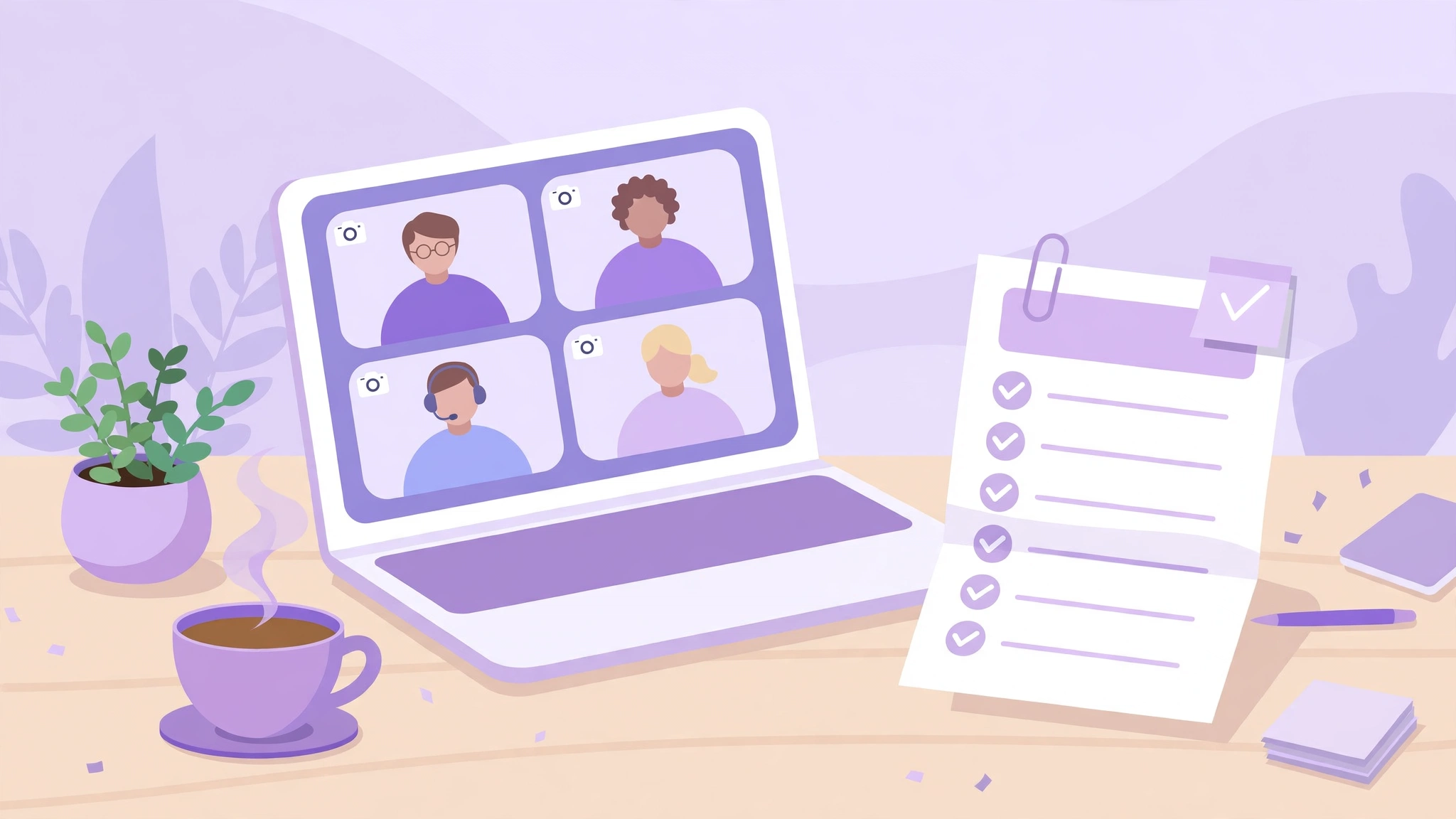
An AI meeting summary does the boring, repetitive part of a meeting for you. It listens, transcribes the conversation, and then writes a short, structured summary with the key points, the decisions made, and the tasks that were assigned. You get a record you can search later, share with people who could not attend, and turn into real work without retyping everything. For a small team, that difference is huge. Nobody has to be the designated note-taker any more, so everyone in the room can actually take part in the discussion.
There is another benefit that is easy to miss: better follow-through. Most meetings fail not because people disagree, but because nobody writes down who is doing what by when. An AI summary fixes that by listing action items with names and deadlines in one place. When the summary lands in your inbox or your project tool a few minutes after the call, you can check it, correct anything that looks wrong, and share it with the team. The result is fewer “I thought you were doing that” moments, fewer repeat meetings, and much less time spent catching up people who missed the call.
AI summaries also help with clients and remote work. If you run a small agency, a consultancy, or a service business, a clear summary after a client call shows professionalism and prevents disputes about what was agreed. If your team works across time zones, a written summary lets colleagues in another country catch up in five minutes instead of watching a full recording at midnight. And when you need to look back three months later, you can search your summaries by keyword instead of digging through chat messages and notebooks. That searchable memory is one of the biggest reasons small businesses stick with these tools once they try them.
How AI Meeting Summaries Actually Work
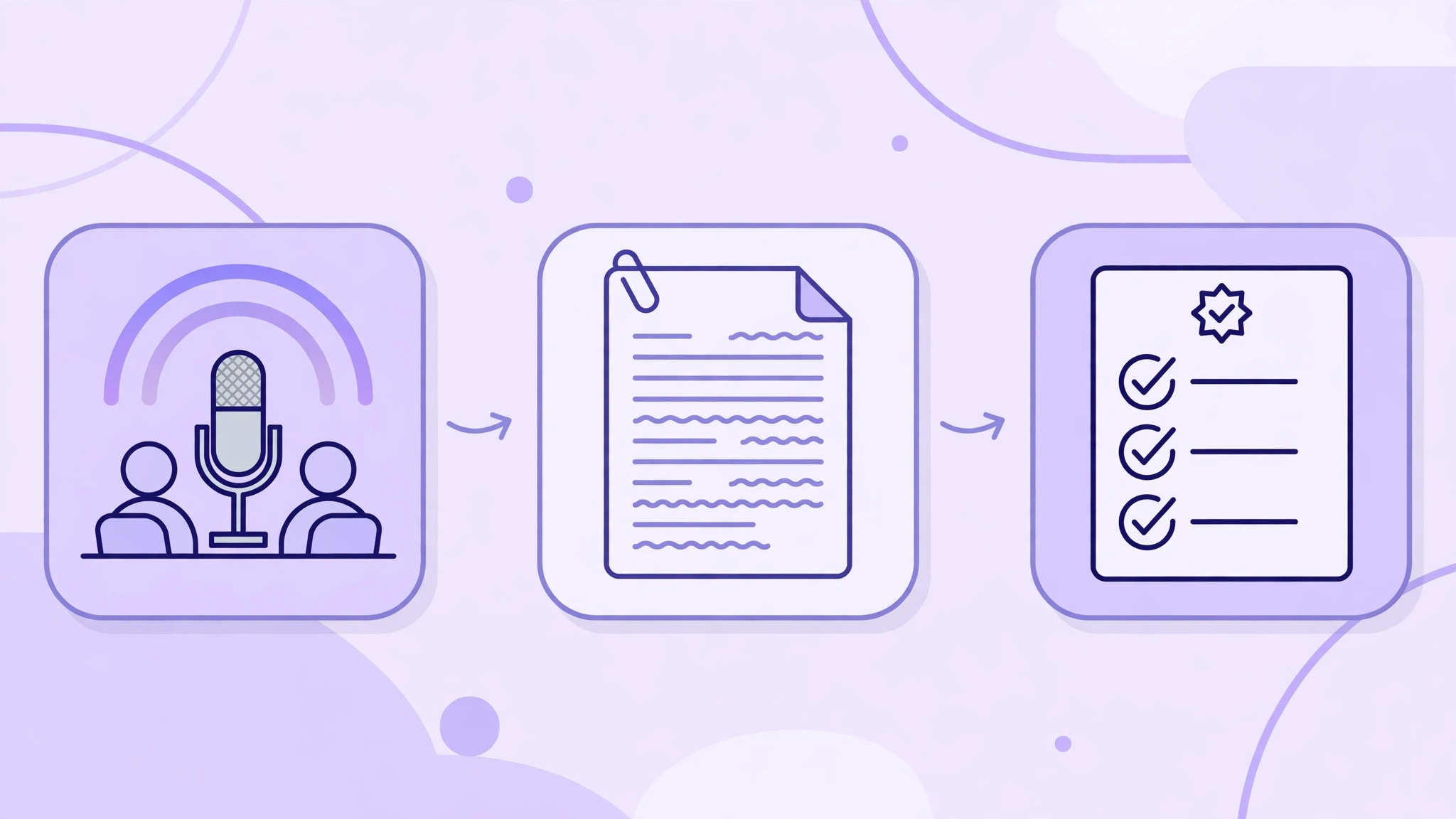
At first, AI meeting summaries can sound like magic. In reality, they follow a simple three-part process: record and transcribe, summarize with AI, and turn the summary into action items. Understanding each part helps you choose the right tool and get better results from it.
Step 1: Record and transcribe
First, the tool captures the audio from your meeting. Many tools do this by joining the call as a virtual participant, which is why you will see a bot with a name like “Otter” or “Fireflies” in your participant list. Others work through a built-in feature of the platform itself, such as Zoom AI Companion or Google Meet with Gemini, which records and transcribes the meeting inside the app you already use. Some tools also let you upload a recording or a voice memo after the meeting. The audio is then turned into a written transcript using speech-to-text technology, with different speakers labelled so you can see who said what.
Step 2: Summarize with AI
Next, an AI language model reads the full transcript and writes a summary. A good summary is not just a shorter version of everything that was said. It picks out the main topics, the decisions, the open questions, and the points people disagreed about. Most tools organize this into sections, such as an overview, key discussion points, and decisions, so you can skim it in a minute. Some also create a short chapter-style outline with timestamps, which is useful if you want to jump back to one part of the recording. The best tools let you choose a summary format, such as a short email update, a detailed report, or a simple bullet list.
Step 3: Pull out action items and share
Finally, the AI scans the transcript for tasks: who agreed to do what, and by when. It lists each action item with the owner’s name, so nothing is left vague. You can then edit the list, assign the tasks in your project tool, and share the summary with your team by email, Slack, or a shared document. Many tools connect directly to tools such as Notion, Asana, Trello, HubSpot, and Salesforce, so an action item in a meeting can become a real task without any copying and pasting. That final step is what turns a summary from a nice document into saved hours every week.
How to Use AI to Summarize Meetings: Step-by-Step Setup
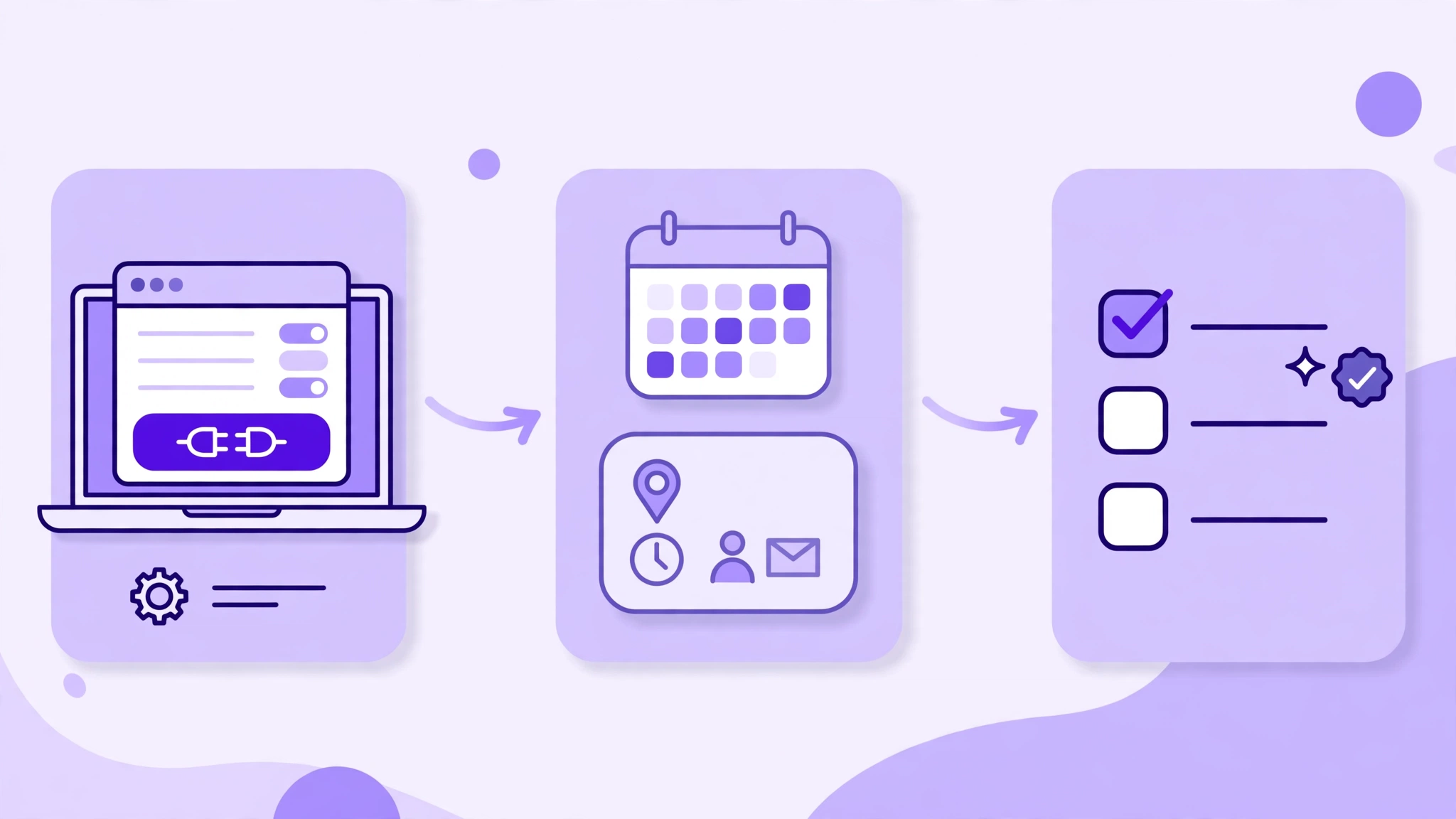
Now that you know how the process works, here is the practical part: how to use AI to summarize meetings in your own business, starting today. Follow these seven steps in order, and you will have your first summary within an hour.
1. Pick one tool and start with a free plan
Do not try three tools at once. Choose one tool from the comparison below that fits the meeting platform you already use, and start with its free plan or trial. If you live in Zoom, start with Zoom AI Companion or Otter.ai. If you live in Google Meet, start with Google Meet with Gemini. If you take notes in Notion, start with Notion AI. Starting with one tool means your team only has to learn one new habit.
2. Connect it to your calendar and meeting platform
Sign up with your work email, connect your Google Calendar or Outlook calendar, and allow the tool to join your meetings. Most AI notetakers ask for calendar access so they can join automatically. Turn on auto-join for internal meetings first, and keep it off for sensitive client calls until you are comfortable. Check that the bot will appear with a clear name, so participants are not surprised when it joins.
3. Tell everyone the meeting will be recorded
Before the tool records anything, tell the people in the meeting. A simple line at the start works well: “I am using an AI notetaker today so we all get a summary and action items afterwards. Please let me know if anyone would prefer not to be recorded.” In many places, and in some businesses, you need consent before recording. We cover the privacy rules in more detail later in this guide. Being open about it also builds trust, and people speak more clearly when they know a summary is being made.
4. Set your summary style before the meeting
Open the tool’s settings and choose a summary template that fits how your team works. A short bullet list works well for a quick internal catch-up. A longer structured summary with decisions and next steps works better for a client meeting or a project review. If the tool lets you add custom instructions, use them: for example, “Always list decisions separately from discussion, and always include the owner and deadline for every action item.” A little setup here saves a lot of editing later.
5. Run one real meeting and review the summary carefully
Join your next normal meeting and let the tool do its job. Do not change how you run the meeting for the tool. After the call, read the summary and the transcript while the conversation is still fresh in your mind. Check names, numbers, dates, and decisions against what you remember. Correct any mistakes in the tool if it lets you edit the summary, because that teaches the tool your team’s names and terms. Share the corrected version with the team so they see the value straight away.
6. Turn action items into real tasks
A summary only saves time if the tasks in it actually happen. After each meeting, take the action items from the summary and put them where work is tracked, whether that is Asana, Trello, Notion, or a simple shared task list. Connect the meeting tool to that app if you can, so tasks are created automatically. Then set a habit: the meeting owner reviews the summary within a day, confirms the owners and deadlines, and sends it to everyone who was there and anyone who missed the call.
7. Make it your team habit
Once the first few meetings work well, write down a one-page routine for your team: which meetings get an AI summary, who reviews it, where it is stored, and how long recordings are kept. Keep summaries in one place, such as a shared Notion workspace or a Google Drive folder, so anyone can find them later. After two weeks, ask your team what is working and what is not. Small changes, such as a better summary template or clearer action items, often make the biggest difference. If you want to build this habit into a wider system, our guide on how to automate your small business with SaaS tools in 2026 shows how meeting summaries fit alongside other automation that saves small teams time.
Best AI Meeting Summary Tools in 2026
There are many AI meeting tools, but most small businesses only need one of these six. The prices below were checked live on each vendor’s own pricing page on 7 November 2026. Prices can change, and some vendors show introductory discounts, so always check the vendor’s pricing page before you buy. Where a tool has no separate price for its AI meeting feature, we say so clearly instead of guessing a number.
1. Otter.ai — Best for teams that meet on many platforms
Otter.ai is one of the best-known AI notetakers, and it works with Zoom, Google Meet, and Microsoft Teams. It joins meetings automatically, transcribes in real time, and produces a summary with action items and a searchable transcript. A free Basic plan covers short meetings, while the Pro plan costs $8.33 per user per month when billed annually, or $16.99 per user per month when billed monthly. Business costs $19.99 per user per month when billed annually. Choose Otter.ai if your team uses more than one meeting platform and wants one tool for all of them.
2. Fireflies.ai — Best for searchable meeting notes and integrations
Fireflies.ai also joins Zoom, Google Meet, Teams, and other calls, and it is especially strong at making meetings searchable. You can search across all your past meetings by keyword, topic, or speaker, and send summaries to tools such as Slack, Notion, Asana, and HubSpot. The free plan is a good way to test it. Pro costs $10 per seat per month when billed annually, or $18 per seat per month when billed monthly. Business costs $19 per seat per month when billed annually, or $29 monthly, and Enterprise costs $39 per seat per month when billed annually. Choose Fireflies.ai if you want a searchable library of every meeting your team has held.
3. Notion AI — Best if you already plan work in Notion
Notion AI is different from the other tools here, because it is built into Notion rather than joining a live call as a bot. Its AI Meeting Notes feature turns your meeting notes and transcripts into summaries, action items, and follow-up tasks inside the workspace where your team already plans work. Pricing on Notion’s own page shows a free plan, Plus at $10 per user per month when billed yearly, and Business at $20 per user per month when billed yearly, which includes AI Meeting Notes. There is also an Enterprise plan with custom pricing. Choose Notion AI if your team already lives in Notion and wants meeting summaries next to its projects and documents.
4. Zoom AI Companion — Best if you already pay for Zoom
Zoom AI Companion is built into Zoom Workplace, so there is nothing extra to install and no separate bot joining your calls. It can create meeting summaries, smart recordings with highlights, and follow-up messages inside Zoom. Zoom does not charge a separate price for AI Companion. It is included in its paid Zoom Workplace plans, and the free Basic plan includes a limited version. Pro costs $14.16 per user per month when billed annually, and Business costs $18.33 per user per month when billed annually, with Enterprise pricing available on request. Choose Zoom AI Companion if your team already meets on Zoom and wants the simplest possible setup.
5. Microsoft Teams Copilot — Best for Microsoft 365 teams
Microsoft Teams Copilot brings AI summaries into Teams meetings, along with intelligent recaps that list decisions, tasks, and follow-ups in Outlook and Teams. The Copilot experience is part of Microsoft 365 Copilot. On Microsoft’s own Copilot page, pricing is listed from $23.50 per user per month paid yearly for business, and from $30 per user per month paid yearly for enterprise. That is a premium add-on price, and it only makes sense if your team already uses Microsoft 365 and Teams every day, because the same licence also powers Copilot in Word, Excel, Outlook, and other Microsoft apps — how to automate customer support with AI chatbots shows another way the same kind of AI can take routine work off a small team. Choose Teams Copilot if you are already a Microsoft 365 business and want meeting summaries inside the tools you already pay for.
6. Google Meet with Gemini — Best for Google Workspace teams
Google Meet with Gemini adds AI meeting notes, summaries, and transcripts to Google Meet without a separate bot or extra app. The “take notes for me” feature and Gemini in Meet are included in Google Workspace plans from Standard upwards, according to Google’s pricing page. Workspace Starter costs $7 per user per month, Standard costs $14 per user per month, and Business Plus costs $22 per user per month, with annual billing and a 10% introductory discount for new customers shown on the page at the time of checking. Choose Google Meet with Gemini if your business already runs on Gmail, Google Calendar, and Google Drive, because the summary can go straight into a Google Doc after the call.
Here is a quick way to compare them at a glance. If you switch platforms often, pick Otter.ai or Fireflies.ai. If you already live in one ecosystem, pick the tool built into it: Zoom AI Companion for Zoom, Teams Copilot for Microsoft 365, Google Meet with Gemini for Google Workspace, and Notion AI for Notion. That one rule will save you more time than comparing every feature list, because the best tool is the one your team will actually use in every meeting.
7 Tips for More Accurate AI Meeting Summaries
Even the best tool will make mistakes if the meeting itself is hard to follow. These seven tips will make your AI meeting summaries noticeably more accurate, starting with your very next call.
- Say names out loud. Use people’s names when you assign a task: “Sarah, can you send the proposal by Friday?” is much easier for AI to turn into an action item than “Can someone send that?”
- Speak one person at a time. Talking over each other is the biggest cause of garbled transcripts. Pause briefly before you answer, especially on video calls.
- Use a good microphone and a quiet room. A headset or a decent laptop microphone makes a bigger difference than any software setting. Background noise and echo confuse speech-to-text tools.
- State decisions clearly. End each topic with a short sentence: “So we have decided to launch on 1 December, and Priya owns the launch page.” The AI will usually copy that straight into the summary.
- Repeat numbers and dates. Say “Friday the 13th” rather than just “Friday,” and repeat a price or a deadline once. That small habit prevents the most costly mistakes.
- Share an agenda in advance. When the tool knows the topics in order, the summary follows the same structure, which makes it easier to read and easier to share.
- Always review before you share. Never send an AI summary to a client without reading it first. Check names, dates, prices, and decisions, and fix anything that looks wrong. A two-minute review keeps your summaries trustworthy.
Privacy, Consent, and Recording Rules You Must Follow
AI meeting summaries are powerful, but they record what people say, so you need to handle them carefully. Always tell participants that the meeting is being recorded and transcribed, and give them a chance to object. In some countries and some US states, you need consent from everyone in the call before recording, not just the person who organized it. If a client or a colleague asks you not to record, respect that and take manual notes instead.
Think about what your tool stores and for how long. Most AI notetakers store the transcript and the recording on their servers, and some use that data to improve their service unless you turn that off. Read the tool’s privacy policy before you use it for confidential calls, and check who can see the summaries inside your team. Turn off auto-join for sensitive meetings, such as HR discussions or contract negotiations, and set a retention rule: for example, delete recordings after 90 days and keep only the written summary. If you work with client data, check your contracts, too, because some clients have rules about where their meeting data can be stored. The same care applies to other AI tools your team uses: our guide on how to use AI tools to plan social media content is a good reminder that useful AI still needs clear rules about what data it can use.
Common Mistakes to Avoid
The most common mistake is setting up a tool and then never reviewing its summaries, so small errors become big misunderstandings. The second is letting the bot join every meeting by default, including sensitive calls where recording is not appropriate. The third is saving summaries in five different places, so nobody can find them later. Keep it simple: one tool, one place for summaries, one person who reviews them, and a clear rule about which meetings are recorded. If a tool is not working for your team after two weeks, switch to another one rather than forcing a bad fit.
Frequently Asked Questions About AI Meeting Summaries
Are AI meeting summaries accurate?
They are usually very good for clear, well-run meetings, and they keep improving. They can still mishear names, numbers, and accents, and they can miss sarcasm or a decision that was only implied. That is why you should always review a summary before sharing it, especially with a client. Think of the AI as a fast first draft, not a final record.
Is it legal to record a meeting with AI?
It depends on where you and the other participants are. Many places require all participants to consent to recording, while others require only one person’s consent. Company policies and client contracts can add more rules. Always announce the recording at the start of the call and check the rules that apply to your location before you record.
Do I need a paid plan to use AI to summarize meetings?
No. Otter.ai and Fireflies.ai both have free plans, Zoom includes limited AI features in its free Basic plan, and Google and Microsoft include AI meeting features in some of their paid Workspace and Microsoft 365 plans. Start free, prove the value with a few real meetings, and only pay when you need longer meetings, more minutes, or more integrations.
Can AI summarize a meeting I already recorded?
Yes, in most cases. Tools such as Otter.ai and Fireflies.ai let you upload an audio or video recording and get a transcript and summary from it. If your tool does not support uploads, you can also play the recording into the tool or paste a transcript into an AI assistant and ask for a summary, although the result is usually better when the tool works from the original audio.
Which AI meeting summary tool is best for a small business?
There is no single best tool for every small business. If you meet on Zoom, start with Zoom AI Companion. If you meet on Google Meet, start with Google Meet with Gemini. If you use Microsoft Teams, look at Teams Copilot. If you switch between platforms, Otter.ai and Fireflies.ai are the most flexible choices, and Notion AI is the best fit if your team already plans its work in Notion.
Conclusion: Start With One Meeting This Week
Learning how to use AI to summarize meetings is one of the easiest wins a small business can make. You do not need to buy new software, change your meeting platform, or train your whole team. Pick one tool that fits the platform you already use, connect it to your calendar, tell your team it is recording, and try it on your next real meeting. Review the summary, turn the action items into tasks, and share it with everyone who was there. Then do the same thing again next week.
Within a few weeks, those small steps add up. You will spend less time writing notes, less time chasing updates, and less time in repeat meetings. You will have a searchable record of every decision your team made, and everyone will know who is doing what by when. That is what saving hours every week really looks like: not a grand new system, but a simple habit that gives you back the time meetings used to take away. Start with one meeting this week, and let the AI do the note-taking from now on.
Prices in this guide were checked live on each vendor’s own pricing page on 7 November 2026 and can change. Always check the vendor’s pricing page for the latest price before you buy.